
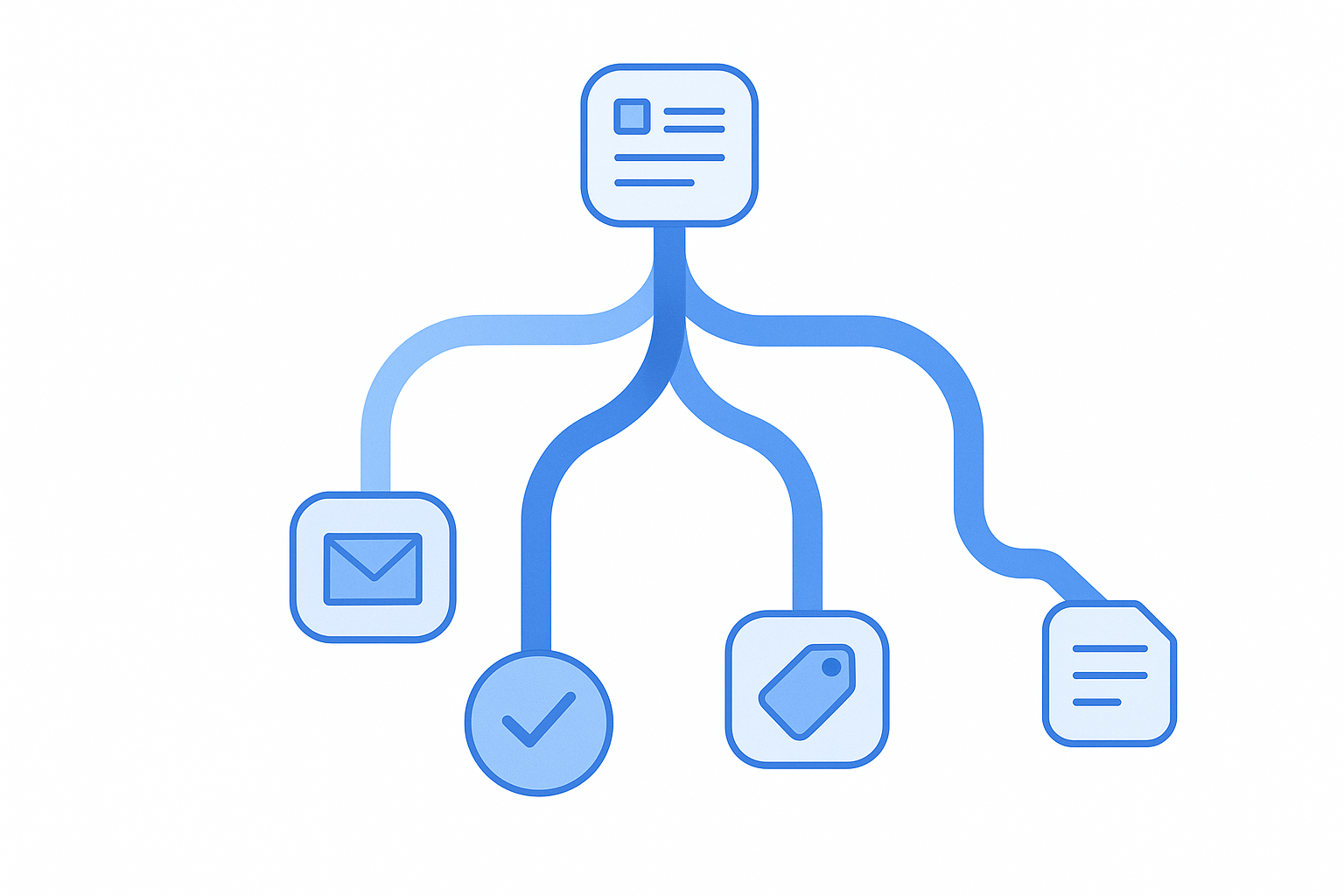
Gravity Forms conditional logic lets you show or hide fields, sections, pages, and navigation buttons based on an earlier answer. The same idea can route notifications, choose a confirmation, control many add-on feeds, and include or exclude product options. For a basic rule, edit the item you want to control, enable Conditional Logic, choose Show or Hide, and define the field, operator, and value that should trigger it.
The important design decision comes before the settings: decide what each answer should change, keep the rule as direct as possible, and test every path. Native Gravity Forms rules support all conditions or any condition within one rule. They do not provide arbitrary nested groups such as (A AND B) OR (C AND D).
How Gravity Forms conditional logic works
A rule has four parts:
- Target: the field, section, page, button, notification, confirmation, or feed being controlled.
- Action: show or hide the target, send or suppress an email, choose an outcome, or process a feed.
- Source: a different field whose value can be evaluated.
- Match: the operator and value that make the condition true.
For example: show the “Company name” field when “Are you applying as a business?” is “Yes.” Gravity Forms evaluates field visibility in the browser as answers change. At submission, fields hidden by conditional logic are ignored: their values are not saved to the entry and are not available to later calculations or processes.
A field cannot control itself. If the source field you expect does not appear in the rule builder, confirm that its field type supports use with conditional logic and that the target is not referencing itself.
Create a basic show-or-hide rule
- Open the form in the Gravity Forms editor.
- Select the field you want to show or hide.
- Expand Conditional Logic in the field settings and enable it.
- Choose Show or Hide.
- Select the source field, an operator such as is or is not, and the value to compare.
- Preview the form and test both the matching and non-matching answer.
Prefer positive, readable rules. “Show VAT number if Customer type is Business” is easier to maintain than a chain of exclusions. Use stable choice values without HTML or special characters. Gravity Forms specifically warns that characters such as pipes, angle brackets, and HTML in choice values can interfere with rule matching; enable separate choice values and keep those values plain when labels need richer text.
Use “all” for AND logic
Select all when every condition must match. A wholesale-pricing field might appear only when the customer type is “Reseller” and the quantity is greater than 20.
Use “any” for OR logic
Select any when one matching condition is enough. An escalation field might appear when the issue type is “Billing,” “Account access,” or “Security.”
Native rules do not mix AND and OR groups inside one rule. If you need grouped logic, first see whether the form can be simplified into explicit paths. For a small number of cases, duplicate target sections with direct rules or repeat the upstream conditions on the downstream field. For genuinely complex groups, use a maintained extension built for advanced conditional logic and document the dependency.
Show or hide a group of fields with a Section field
A Section field can control the fields that follow it up to the next Section or Page field. This is cleaner than copying the same rule onto six related fields.
For an intake form, add a “Request type” radio field and three sections: Sales, Support, and Billing. Put each section’s fields directly beneath its Section field, then show each section only when its matching request type is selected.
Check the editor order carefully. Moving a Section or inserting another one changes which fields belong to that block. Test required fields inside every section; a field that is hidden by logic is ignored, but a visible required field must still be completed.
Branch a multi-page form
Gravity Forms offers two controls for multi-page forms:
- Page conditional logic decides whether an entire page is shown or skipped based on earlier answers.
- Next button conditional logic decides whether the visitor can see the Next button on the current page.
Put the controlling question before the page it affects. A first page can ask whether the visitor needs installation, repair, or maintenance; the next three pages can each be shown only for the relevant answer; a final contact page can remain shared.
Do not rely on a hidden Next button as the only explanation for why someone cannot continue. Add visible guidance near the controlling question so the visitor understands the requirement. For a complete page-flow setup, see the multi-step form guide.
Route Gravity Forms notifications
Conditional notifications are useful when different submissions need different recipients or messages. Go to Form Settings → Notifications, edit or add a notification, enable conditional logic, and define when it should send.
A support form might have three admin notifications:
- send the Sales notification when Department is Sales;
- send the Support notification when Department is Technical Support; and
- send an escalation notification when Priority is Urgent.
Conditions are applied per notification. If three notifications are active without conditions, all three can run. Test the actual emails, including sender settings and delivery, rather than assuming a correct conditional rule guarantees inbox delivery. The Gravity Forms notification guide covers routing and mail troubleshooting in more detail.
Create conditional confirmations
Confirmations control what happens after a successful submission: show text, open a WordPress page, or redirect to a URL. Additional confirmations can use conditional logic, but the Default Confirmation cannot. It remains the fallback when no conditional confirmation matches.
- Go to Form Settings → Confirmations.
- Add a new confirmation.
- Choose Text, Page, or Redirect and configure the outcome.
- Set the conditional rule at the bottom of the confirmation settings.
- Put more specific confirmations above broader ones.
If several active conditional confirmations match, Gravity Forms uses the first match. Test the order as well as the conditions. Keep the Default Confirmation meaningful so an unanticipated answer combination still receives a useful result.
Use conditional logic with products and calculations
Conditional product fields work well for optional fees and product variants. For example, show a “Rush processing” Product field only when the visitor selects a rush turnaround. When the field is hidden at submission, it is not saved and should not contribute to the total.
Calculations need more care. Gravity Forms recalculates on submission using saved field values. A field referenced in a formula must appear before the calculation field and must not be hidden by conditional logic at submission. Otherwise its value is unavailable and the saved calculation can be empty or wrong.
Gravity Forms conditional logic is not an if() statement inside a formula. When a price depends on a condition, it is often safer to use a separate Product or Number field controlled by a direct rule, then let the Total field add the visible products. See the calculations and pricing guide for formula rules and order-form structure.
Avoid unsupported nested conditional logic
Gravity Forms does not officially support a field whose visibility depends on another conditionally displayed field. The downstream rule can appear to work in a simple test and then fail when the upstream value is reset, dynamically populated, or changed on a later page.
For example:
- Field B is shown when Field A equals “Yes.”
- Field C is shown when Field B equals “Premium.”
Field C has a nested dependency. A safer native design makes Field C depend explicitly on both A and B. For dropdown sources, add an empty placeholder so a hidden field resets to an empty value instead of its first option. Avoid default values and dynamic population on a conditionally hidden source field when another rule depends on it.
If the logic map becomes difficult to explain on one page, that is a maintenance warning. Reduce the number of states, split the workflow into smaller forms, or use a purpose-built advanced-logic extension instead of relying on accidental nested behavior.
Conditional logic and dynamic population
Dynamic population supplies a value when the form loads; conditional logic evaluates the values currently available to the form. That combination is valid for direct rules, but it becomes fragile when a dynamically populated field is also part of a nested dependency.
Test the form using the real query string, shortcode parameter, hook, or API path that populates the source value. A successful test in the form preview does not prove that the embedded, dynamically populated version will start in the same state. The dynamic population guide covers those input methods.
Why Gravity Forms conditional logic is not working
- Confirm the exact stored value. Check choice values, capitalization, spaces, and special characters rather than only the visible label.
- Remove nested dependencies. Make downstream fields depend explicitly on the upstream answers they require.
- Add a dropdown placeholder. A hidden dropdown without an empty option can reset to its first choice.
- Check field order. The controlling answer must be available before a conditional page or calculation needs it.
- Test without dynamic defaults. Temporarily remove default or dynamically populated values from conditional source fields.
- Check the browser console. A JavaScript error from the theme, optimization layer, or another plugin can interrupt front-end behavior.
- Purge relevant caches. Confirm that the public page is loading the current form markup and scripts.
- Use a conflict test safely. Reproduce the form on staging, or use Gravity Forms’ documented troubleshooting mode, before disabling plugins on a live site.
- Enable Gravity Forms logging. Logs are especially useful when front-end behavior looks correct but notifications, calculations, or feeds do not process as expected.
For a deeper diagnostic workflow across common WordPress form builders, use the conditional-logic troubleshooting guide.
Test every path before publishing
Write a small path table before testing. Each row should contain the starting answer, fields and pages expected to appear, notifications expected to send, confirmation expected to run, and calculated total expected to be saved.
- Test every branch with valid values.
- Change an answer after entering data in a conditional field; confirm hidden data does not survive unexpectedly.
- Submit each path and inspect the saved entry.
- Check calculated values and payment totals in the entry, not only in the browser.
- Verify which notifications arrived and which did not.
- Verify the selected confirmation and its destination.
- Repeat the important paths on a phone and with keyboard navigation.
Measure whether the shorter path helps
Conditional logic can make a form more relevant, but it does not automatically improve conversion. Record a baseline, change one meaningful part of the flow, and compare completion and error behavior over an equivalent period.
GA4 can connect form submissions to acquisition and other site activity. A form-level analytics tool can provide more local diagnosis. Odd Jar makes Form Analytics Pro for Gravity Forms, which measures sessions, starts, page progression, validation, and field interactions without storing entered field values. It does not replace GA4 for traffic attribution. The Gravity Forms analytics guide explains the metrics and the limits of each measurement layer.
Frequently asked questions
Can Gravity Forms use AND and OR in the same rule?
No. A native rule can require all conditions or any condition, but it cannot create grouped expressions such as (A AND B) OR C. Restructure the paths, make dependencies explicit, or use a maintained advanced-logic extension.
Can I put Gravity Forms conditional logic in a shortcode?
Gravity Forms shortcodes embed and configure a form; the form’s field rules are configured in the Form Editor. Shortcode parameters or query strings can dynamically populate source fields, which may then trigger direct conditional rules, but the shortcode is not a replacement for the rule builder.
Can I import conditional logic with CSV?
CSV files are commonly used for entry data, not the complete form definition. Use Gravity Forms’ form export/import workflow for form settings and verify the rules after migration. If an external tool creates or updates forms through code, test field IDs and choice values because conditional rules depend on them.
What happens to a required field when conditional logic hides it?
A field hidden by conditional logic at submission is ignored, so it does not block submission and its value is not saved. If it becomes visible again, its required rule applies.
Why does a checkbox conditional rule not match?
Check the specific checkbox choice and its stored value. Keep custom choice values plain, and avoid HTML or special characters that can affect comparisons. Re-save the rule after changing the choices, then test checked, unchecked, and changed-answer states.

