
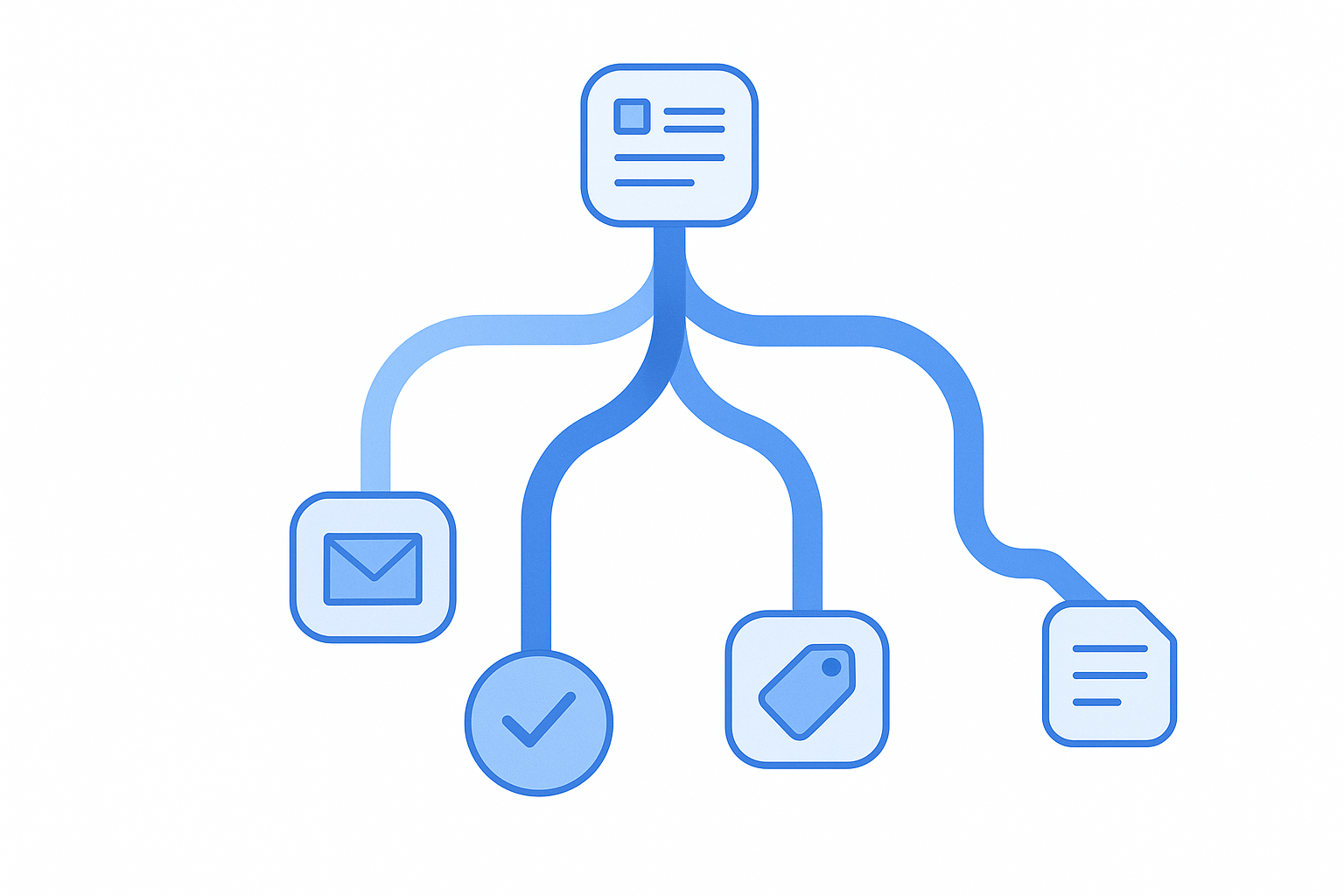
Conditional logic transforms a static Gravity Forms form into a dynamic conversation. Instead of presenting every field to every visitor, rules you define show or hide fields, skip entire pages, route notifications to the right team, and display personalized confirmations — all based on what someone enters in real time.
This guide covers every layer of Gravity Forms conditional logic: field-level visibility, section and page controls, notification routing, confirmation branching, pricing rules, and the practical patterns that tie them together. Whether you are building your first “show this if” rule or designing a multi-page intake form with department-based email routing, you will find the steps here.
How Conditional Logic Works in Gravity Forms
At its core, conditional logic follows a single pattern: if a condition is true, then perform an action. Gravity Forms evaluates these rules on the client side using JavaScript, which means visitors see fields appear or disappear instantly without a page reload.
Every conditional logic rule has three components:
- The target — the field, section, page, notification, or confirmation the rule controls.
- The action — show or hide (for fields) or send or do not send (for notifications).
- The condition(s) — one or more “if” statements that reference another field’s value.
You can stack multiple conditions on a single rule and choose whether all conditions must be true (AND logic) or any single condition triggers the action (OR logic). Understanding that distinction early saves hours of debugging later.
AND Logic vs. OR Logic
AND logic means every condition must be satisfied before the action fires. Use it when you need precision — for example, showing a bulk-discount field only when the order quantity exceeds 50 and the customer type equals “wholesale.”
OR logic means the action fires as soon as any single condition is met. It is useful for broader triggers — showing a rush-fee field if the delivery date is “within 48 hours” or the customer selected “expedited shipping.”
Gravity Forms does not support mixed AND/OR grouping natively. If you need “(A AND B) OR (C AND D)” in a single rule, you will need to restructure your form, use hidden fields as intermediary flags, or add the Advanced Conditional Logic add-on from Gravity Wiz, which introduces grouped condition sets.
Field-Level Conditional Logic: Show and Hide Fields
Field visibility rules are the most common conditional logic use case. They let you keep forms short for simple submissions while revealing extra fields when a visitor’s answer requires more detail.
Setting Up a Basic Visibility Rule
- Open a form in the Gravity Forms editor and select the field you want to conditionally show or hide.
- In the field settings panel, expand Conditional Logic.
- Toggle Enable Conditional Logic on.
- Choose Show this field or Hide this field.
- Set the condition: select the source field, choose an operator (is, is not, greater than, less than, contains, starts with, ends with), and enter the value to match.
- Click the + icon to add more conditions if needed, and choose whether all or any must match.
Practical example: On a support request form, add a dropdown asking “What type of issue?” with choices like Billing, Technical, and General. Then add a file upload field with conditional logic set to “Show this field if ‘What type of issue?’ is ‘Technical’.” Visitors with billing questions never see the upload field, keeping their experience focused.
Section-Level Conditional Logic
When several related fields should appear or disappear together, apply conditional logic to a Section Break field. Every field between that section break and the next section break (or the end of the form) inherits the visibility rule.
This is cleaner than setting individual rules on five or six fields. Create a radio button asking visitors whether they are an individual or a business, then conditionally show a “Business Details” section containing company name, tax ID, and employee count fields.
Important Visibility Behaviors to Know
- Hidden fields are excluded from submission. When conditional logic hides a field at the time the visitor clicks Submit, that field’s data is not saved to the entry and is not included in calculations or merge tags. This is intentional — it prevents stale data from hidden fields from affecting results.
- Self-referencing rules are not supported. A field cannot reference its own value in a conditional logic rule. The condition must always point to a different field.
- Special characters in choice values can break logic. Avoid pipe characters (|), angle brackets (< >), and raw HTML in dropdown or radio button values. If you need display labels that differ from stored values, enable the Show Values setting and keep the Value column as plain text.
Built by Odd Jar
Know Exactly How Your Forms Are Performing
Form Analytics Pro gives you conversion rates, abandonment tracking, and field-level analytics for every Gravity Forms form — zero configuration required. No Google Analytics needed.
Page-Level Conditional Logic: Build Branching Multi-Page Forms
Conditional logic on Page Break fields lets you skip entire pages based on earlier answers, creating branching paths through a multi-page form without forcing every visitor through every step.
How Page Conditional Logic Works
Apply conditional logic to a Page Break field the same way you would apply it to a regular field. When the condition evaluates to false, Gravity Forms hides the entire page and its contents. The visitor moves directly from the previous page to the next visible page.
Example: A service request form with three paths.
- Page 1: “What do you need?” — Repair, Maintenance, or New Installation.
- Page 2A (conditional): Show only if “Repair” is selected. Collects device model, serial number, and description of the issue.
- Page 2B (conditional): Show only if “Maintenance” is selected. Collects preferred schedule and service history.
- Page 2C (conditional): Show only if “New Installation” is selected. Collects site address, electrical requirements, and budget range.
- Page 3: Always visible. Contact information and submit.
Each visitor sees only two pages instead of five, which reduces form abandonment and improves completion rates.
Controlling the Next Button
You can also apply conditional logic to the Next button on a page. This is useful when a particular answer means the visitor should not continue. For example, if a licensing form asks “Do you have a valid license?” and the answer is “No,” you can hide the Next button entirely and display a message explaining eligibility requirements.
Conditional Notifications: Route Emails Based on Form Data
Notifications are the emails Gravity Forms sends after a submission. By default, every notification fires on every submission. Conditional logic lets you create multiple notifications and control which ones actually send. For a deeper look at notification configuration, see our complete guide to Gravity Forms email notifications.
Setting Up Conditional Notification Routing
- Navigate to your form’s Settings > Notifications.
- Create (or edit) a notification.
- Scroll to the bottom of the notification editor and toggle Enable Conditional Logic.
- Set the condition: for example, “Send this notification if ‘Department’ is ‘Sales’.”
- Repeat for each department or category, creating a separate notification per routing destination.
Common routing patterns:
- Department routing: A “Department” dropdown sends the submission to sales@, support@, or billing@ depending on the selection.
- Priority escalation: A notification to the department manager fires only when “Priority” is “Urgent.”
- Empty-field checks: Send a follow-up email only when the visitor leaves a phone number field empty, prompting them to provide one.
Keep in mind that all notifications fire by default unless you add conditional logic. If you create three department-specific notifications but forget to add conditions, every department gets every submission.
Conditional Confirmations: Personalize Post-Submission Responses
Confirmations control what happens immediately after someone submits a form. Gravity Forms supports three confirmation types — text message, page redirect, and URL redirect — and you can create multiple confirmations with conditions determining which one activates.
How Conditional Confirmations Work
The Default Confirmation always exists and cannot be deleted or deactivated. It serves as the fallback when no other confirmation’s conditions match. To create conditional confirmations:
- Go to Form Settings > Confirmations.
- Click Add New to create a new confirmation.
- Choose the confirmation type (Text, Page, or Redirect).
- Toggle Enable Conditional Logic and set the conditions.
- Gravity Forms evaluates confirmations from top to bottom. The first one whose conditions match is used. If none match, the Default Confirmation fires.
Example scenarios:
- Product-specific thank-you pages: Redirect visitors who selected “Enterprise Plan” to a dedicated onboarding page, while showing a simple text confirmation for free-tier signups.
- Regional redirects: If the visitor selects “United Kingdom” as their country, redirect to a UK-specific landing page with local pricing.
- Query string passing: Use the Redirect confirmation type with merge tags in the URL to pass submitted data to another page or external system. For example:
https://example.com/thank-you?name={Name:1}&email={Email:2}.
Conditional Logic with Pricing and Product Fields
Gravity Forms product fields support conditional logic, which means you can show or hide products, options, and fees based on earlier selections. This is powerful for order forms, service quotes, and event registrations.
Common Pricing Patterns
- Category-based product display: A “Vehicle Type” dropdown (Jeep, Ford, Honda) conditionally shows only the models belonging to the selected brand. Visitors see three or four choices instead of fifteen.
- Conditional fees: Show a “Rush Processing” product field only when the visitor selects a delivery date within the next 48 hours.
- Tiered service options: Display premium add-ons only when the visitor selects the “Pro” or “Enterprise” base package.
Remember that hidden product fields are excluded from the total calculation at submission time. If a visitor changes their dropdown selection from “Jeep” to “Ford,” any Jeep-specific products that were visible and priced are removed from the total as soon as they become hidden.
Combining Conditional Logic with Calculations
You can use conditional logic alongside Gravity Forms calculation fields for more complex pricing. For example, a number field captures a quantity, a calculation field computes the subtotal, and a separate conditional product field adds a surcharge only when the subtotal exceeds a threshold. For a deeper dive into calculation formulas and order form setups, see our complete guide to Gravity Forms calculations and pricing fields.
Real-World Conditional Logic Patterns
The individual pieces above — field visibility, page branching, notification routing, confirmation selection, and pricing — become genuinely powerful when you combine them in real-world scenarios. Here are four patterns that appear in production forms across industries.
Pattern 1: The Smart Support Ticket
A customer submits a support request. A dropdown for “Issue Category” (Billing, Technical, Account) drives three behaviors simultaneously: it shows a category-specific set of fields (such as error codes for Technical), routes the notification to the correct support team, and displays a confirmation message with the expected response time for that category.
Pattern 2: The Branching Application Form
A nonprofit collects grant applications. Page 1 asks for the applicant type (Individual, Small Business, or Organization). Each type gets a dedicated conditional page with fields tailored to their context — individuals see personal income fields, businesses see revenue and employee count, and organizations see mission statement and board-member details. Page 4 is shared: upload supporting documents and submit.
Pattern 3: The Adaptive Event Registration
An event form starts with ticket selection: General, VIP, or Speaker. VIP attendees see add-on workshop options and a dietary-preferences field for the VIP dinner. Speakers see a session-title field and an AV-requirements checklist. General attendees see a streamlined form with just contact details. Three different confirmation messages thank each group and provide relevant next steps (parking info for General, backstage instructions for Speakers).
Pattern 4: The Qualifying Lead Form
A B2B company uses conditional logic to qualify leads before they reach the sales team. A “Company Size” dropdown with “1-10 employees,” “11-50,” and “50+” options conditionally shows a budget range field only for 50+ companies. A conditional notification sends large-company leads to the enterprise sales team while smaller leads receive an automated email with self-serve resources.
Performance Considerations and Limitations
Conditional logic evaluation happens in the browser, not on the server. That means a form with dozens of conditional rules forces the visitor’s browser to evaluate every rule whenever a field value changes. On most forms this is imperceptible, but there are edge cases to watch for.
When Performance Becomes Noticeable
- Large forms with 50+ fields and heavy conditional logic can cause noticeable lag, especially on mobile devices. If you reach this scale, consider splitting the form into smaller connected forms and passing data between them using confirmation query strings.
- Circular dependencies — where Field A’s logic references Field B and Field B’s logic references Field A — create a loop that increases CPU usage in the browser. Avoid these by mapping your logic dependencies on paper before building.
Known Limitations
| Limitation | Explanation | Workaround |
|---|---|---|
| No nested condition groups | Native Gravity Forms supports AND or OR, not both in one rule | Use hidden fields as flags or the Advanced Conditional Logic add-on |
| No greater/less-than for non-numeric fields | Comparison operators are limited for text-based choices | Use Number fields or enable Show Values with numeric values |
| No conditional logic on the Default Confirmation | The default confirmation always exists as a fallback | Create additional confirmations with conditions; use Default as the catch-all |
| Hidden fields excluded from entry data | Fields hidden at submission are not saved | Use CSS visibility (custom code) if you need to retain hidden field data |
| Decimal precision capped at four places | Values like 0.00002 are not valid in conditional logic rules | Restructure calculations to avoid extreme precision |
For a comprehensive list of native limitations, see the Gravity Forms conditional logic limitations documentation.
Debugging and Testing Conditional Logic
Gravity Forms does not include a built-in conditional logic debugger, so testing requires a methodical approach.
- Preview the form and walk through every path. Use the form preview to test each combination of selections. Verify that the correct fields appear, the right pages display, and the expected notifications fire (check your inbox and spam folder).
- Test edge cases. Submit with fields left empty, submit with unexpected values, and test on both desktop and mobile browsers.
- Check notification delivery. Create test notifications that send to your own address. Confirm that conditional routing sends the right content to the right recipient.
- Use browser developer tools. If a field is not appearing when expected, open your browser’s developer console (F12) and check for JavaScript errors. Conditional logic runs via JavaScript, so a conflict with another plugin’s script can break evaluation silently.
- Inspect entries. After a test submission, check the entry in Forms > Entries to verify that hidden-field data was correctly excluded and visible-field data was saved as expected.
If you suspect conditional logic is not working at all, our troubleshooting guide for conditional logic issues covers the most common causes including JavaScript conflicts, caching plugins, and field-type mismatches.
Built by Odd Jar
Search All Your Gravity Forms Entries at Once
Global Search lets you search across every form, entry, field, and note from a single search box. Handles thousands of entries in seconds with a command-bar hotkey for instant access.
Measuring the Impact of Your Conditional Logic
Adding conditional logic should improve the user experience, but how do you know it actually did? Track form completion rates before and after implementing conditional rules. If you shortened a 15-field form to show only 8 fields for most visitors, you should see a measurable increase in submissions.
Our plugin, Form Analytics Pro for Gravity Forms, gives you conversion rates, field-level abandonment tracking, and real-time session monitoring for every form — no Google Analytics configuration required. It is especially useful after conditional logic changes because you can see exactly which fields visitors interact with and where they drop off, letting you refine your logic rules with real data instead of guesswork.
Next Steps
Conditional logic is one of the features that makes Gravity Forms worth choosing over simpler form builders. Start with basic field-visibility rules on a single form, then gradually layer in page branching, notification routing, and confirmation personalization as your requirements grow. Map your logic on paper first (even a quick sketch prevents circular dependency headaches), test every path before going live, and track the results.
For related guides, see our posts on email notification setup and routing, dynamic field population, and creating high-converting multi-step forms.
