
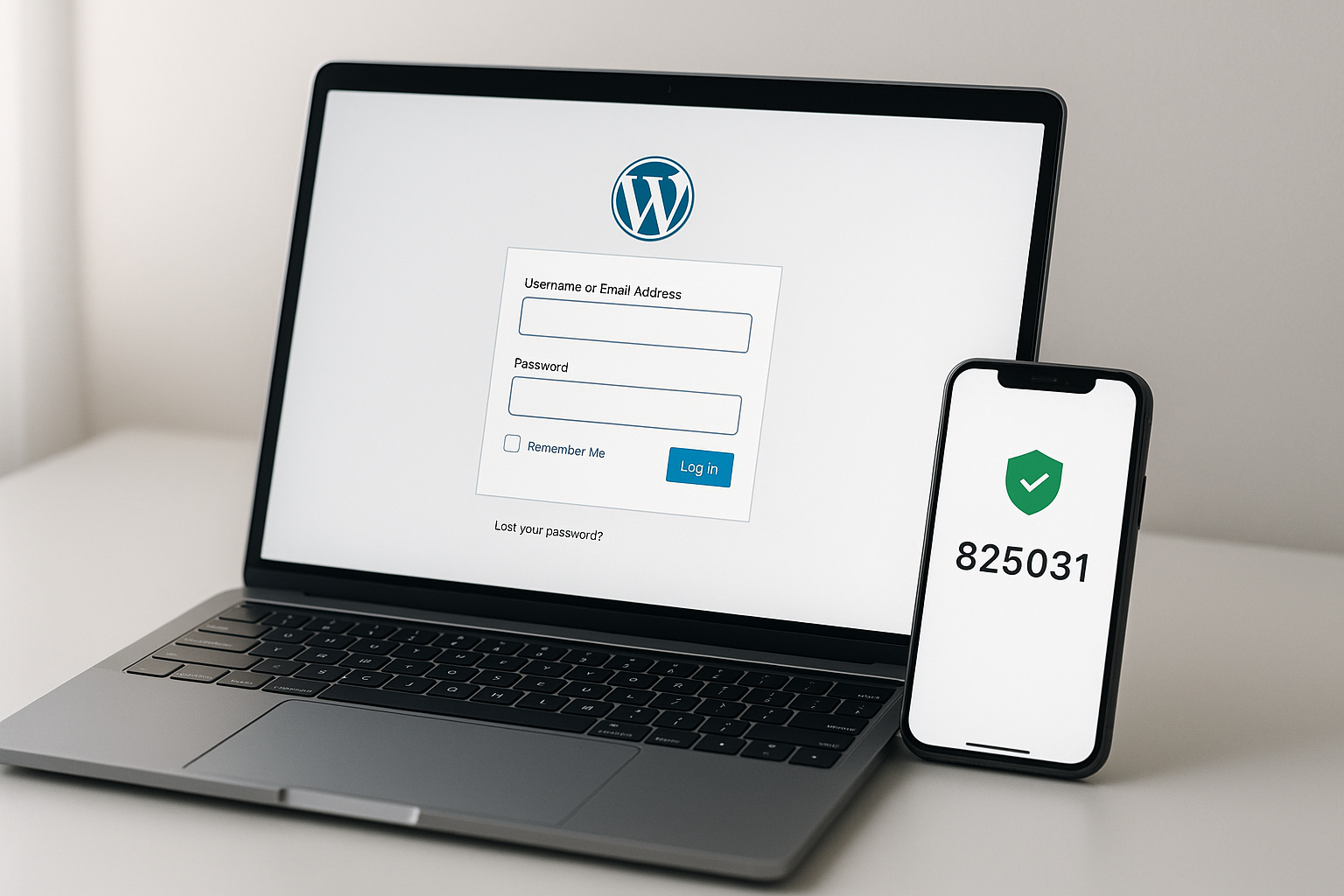
With 65 million brute force attacks blocked every day and 11,334 new WordPress vulnerabilities discovered in 2025 alone, a strong password is no longer enough. Two-factor authentication (2FA) adds a second verification step to your WordPress login, so even if an attacker steals your password, they still cannot get in. This guide walks you through everything you need to set up 2FA on your WordPress site in under five minutes.
Why Your WordPress Site Needs 2FA Right Now
The numbers paint a stark picture. According to Wordfence’s Q3 2025 threat report, 19.2 billion brute force login attempts were blocked in a single quarter — a 98.9% increase from the previous quarter. Those attacks came from 25.7 million unique IP addresses, meaning this is organized, industrial-scale credential theft.
Passwords alone fail for three reasons:
- Credential stuffing works. When databases from other breaches leak, attackers try those username-password pairs against WordPress sites. If you reuse passwords (most people do), your site is exposed.
- Brute force is fast and cheap. Automated tools cycle through thousands of password combinations per minute. A weak or common password can fall in seconds.
- Exploitation speed is accelerating. Patchstack’s 2026 State of WordPress Security report found that critical vulnerabilities are now weaponized within a median window of just five hours from public disclosure.
Two-factor authentication neutralizes all of these. Even with a correct password, the attacker needs your phone, your email inbox, or your physical security key to complete the login. It is the single highest-impact security change most site owners can make.
How Two-Factor Authentication Works
2FA requires two separate proofs of identity before granting access:
- Something you know — your username and password (the first factor).
- Something you have — a time-based code from an app, an email with a one-time code, or a hardware security key (the second factor).
After entering your password on the WordPress login screen, you are prompted for the second factor. Without it, the login fails. This means a stolen password alone is useless to an attacker.
Common 2FA Methods for WordPress
| Method | How It Works | Security Level | Best For |
|---|---|---|---|
| Authenticator App (TOTP) | App generates a new 6-digit code every 30 seconds | High | Most users — recommended default |
| Email Code | One-time code sent to your registered email | Medium | Users who cannot install apps |
| Hardware Security Key | Physical USB or NFC key (FIDO2/WebAuthn) | Very High | High-security sites, phishing resistance |
| SMS Code | Code sent via text message | Lower | Fallback only — vulnerable to SIM swapping |
For most WordPress sites, an authenticator app like Google Authenticator, Authy, or 1Password provides the best balance of security and convenience.
Choosing a WordPress 2FA Plugin
WordPress does not include 2FA in core (yet), so you need a plugin. Here are the four strongest options in 2026:
WP 2FA (by Melapress) — Best Overall
WP 2FA is the most full-featured free 2FA plugin available. It supports authenticator apps, email codes, and backup codes out of the box. The setup wizard guides you through configuration in under two minutes. The free version includes role-based enforcement, so you can require 2FA for administrators while leaving it optional for subscribers. The premium tier adds SMS authentication, passkey support, trusted devices, and custom grace periods.
Wordfence Login Security — Best if You Already Use Wordfence
If Wordfence is already your security plugin, its Login Security module provides solid TOTP-based 2FA at no extra cost. It is lightweight and integrates directly with Wordfence’s brute force protection and firewall. The limitation is fewer authentication methods — no email codes or backup codes in the free version.
Two Factor (by UpdraftPlus) — Best Lightweight Option
This plugin does one thing well: adds TOTP authentication with minimal overhead. It has no configuration bloat and works cleanly with multisite installations. Backup codes require the premium version.
miniOrange Google Authenticator — Best for Custom Login Forms
If your site uses custom login pages, WooCommerce checkout logins, or membership plugin login forms, miniOrange provides shortcodes and integrations that work beyond the default wp-login.php. The free version is limited to three users; larger sites need the premium plan.
Built by Odd Jar
Know Exactly How Your Forms Are Performing
Form Analytics Pro gives you conversion rates, abandonment tracking, and field-level analytics for every Gravity Forms form — zero configuration required. No Google Analytics needed.
Step-by-Step: Setting Up 2FA with WP 2FA
This walkthrough uses WP 2FA because it offers the most functionality for free and has the smoothest setup experience. The process takes about three minutes.
Step 1: Install and Activate the Plugin
In your WordPress dashboard, go to Plugins > Add New Plugin. Search for WP 2FA. Click Install Now, then Activate. The setup wizard launches automatically.
Step 2: Choose Your Authentication Methods
The wizard asks which 2FA methods to enable. Select One-time code via 2FA app (recommended) and optionally One-time code via email as a backup method. Click Continue Setup.
Step 3: Set Your Enforcement Policy
Choose who must use 2FA:
- All users — maximum security, best for business sites.
- Only specific roles — require it for Administrators and Editors, leave it optional for Subscribers.
- Do not enforce — let users opt in voluntarily.
For most sites, enforcing 2FA for Administrators and Editors provides the best security-to-friction balance. You can always expand later.
Step 4: Configure Your Own Account
The wizard now walks you through enabling 2FA on your account:
- Open an authenticator app on your phone (Google Authenticator, Authy, or 1Password).
- Scan the QR code displayed on screen.
- Enter the six-digit code from your app to verify the connection.
- Click Validate & Save.
Step 5: Generate and Save Backup Codes
This is the step most people skip — and the one that matters most if you lose your phone. Click Generate Backup Codes. You will receive a set of one-time recovery codes. Save them in a password manager or print them and store them securely. Each code can only be used once.
Step 6: Test Your New Login
Log out of WordPress, then log back in. After entering your password, you should see a prompt for your 2FA code. Enter the current six-digit code from your authenticator app. If it works, your setup is complete.
Configuring 2FA for Your Entire Team
If you manage a multi-author blog, an agency site, or a WooCommerce store with multiple admin users, rolling out 2FA across your team requires a thoughtful approach:
- Start with admins first. Enable 2FA for Administrator accounts before requiring it for other roles. This lets you troubleshoot issues with the smallest, most technical group first.
- Set a grace period. WP 2FA lets you give users a deadline to configure 2FA (for example, 3 days) before their access is restricted. This avoids surprise lockouts.
- Provide clear instructions. Send your team a brief email explaining what 2FA is, why you are enabling it, and which authenticator app to install.
- Keep backup codes accessible. Remind every user to save their backup codes immediately after setup.
Troubleshooting Common 2FA Issues
Codes Not Accepted
The most common cause is a time synchronization problem. TOTP codes are time-based, refreshing every 30 seconds. If your phone’s clock is off by more than a minute, codes will fail. Fix this by enabling automatic time sync on your device (Settings > Date & Time > Set Automatically).
Locked Out After Losing Your Phone
If you saved backup codes, use one to log in. If you did not save backup codes, you will need to disable the 2FA plugin via FTP or your hosting file manager. Navigate to wp-content/plugins/, rename the wp-2fa folder to wp-2fa-disabled, then log in normally. Reconfigure 2FA and generate new backup codes immediately.
Email Codes Not Arriving
WordPress relies on the wp_mail() function, which uses your server’s default mail configuration. If emails are not arriving, the issue is usually your server’s email deliverability, not the 2FA plugin. Install an SMTP plugin like WP Mail SMTP or FluentSMTP to route WordPress emails through a proper mail service. For a deep dive into fixing WordPress email delivery, see our complete guide to resolving email sending issues.
Plugin Conflicts
If 2FA stops working after installing another plugin, deactivate your most recently added plugins one at a time to identify the conflict. Security plugins that modify the login page (like custom login URL plugins) are the most common source of conflicts.
Beyond 2FA: Layering Your Login Security
Two-factor authentication is powerful, but it works best as part of a layered security approach:
- Use strong, unique passwords. A password manager like 1Password or Bitwarden eliminates the temptation to reuse credentials.
- Limit login attempts. Plugins like Limit Login Attempts Reloaded or Wordfence’s built-in brute force protection block repeated failed logins from the same IP.
- Change the login URL. Moving
wp-login.phpto a custom URL with a plugin like WPS Hide Login reduces automated bot traffic hitting your login page. - Keep everything updated. With 91% of WordPress vulnerabilities found in plugins (not core), keeping plugins updated is critical. Patchstack’s 2026 report found that 46% of vulnerabilities went unfixed by developers before public disclosure — making updates your first line of defense.
- Use application-level firewalls. A WAF like Wordfence, Sucuri, or Patchstack provides real-time protection against known exploits. Patchstack’s penetration testing revealed that server-level WAFs blocked only 12% of WordPress-specific attacks — application-layer protection is essential.
If your site collects sensitive data through forms — particularly login credentials, payment information, or personal details — tracking how those forms perform is equally important. Our plugin Form Analytics Pro for Gravity Forms monitors conversion rates and field-level abandonment so you can identify whether security friction (like CAPTCHA or multi-step verification) is causing users to drop off before completing a submission.
Which 2FA Plugin Should You Choose?
| Plugin | Price | Auth Methods | Backup Codes | WooCommerce | Best For |
|---|---|---|---|---|---|
| WP 2FA | Free / Premium | App, Email, SMS (Pro), Passkeys (Pro) | Free | Full support | Most WordPress sites |
| Wordfence Login Security | Free | App only | No | Customer accounts | Existing Wordfence users |
| Two Factor | Free / Premium | App, QR | Premium only | Yes | Minimal overhead |
| miniOrange | Free (3 users) / Premium | App, Email, SMS (Pro), Push (Pro) | Yes | Full support | Custom login forms |
For the majority of sites, WP 2FA is the right choice. It is free, full-featured, and takes minutes to configure. If you are already running Wordfence, use its built-in 2FA to avoid adding another plugin. If you run a membership site or WooCommerce store with custom login flows, evaluate miniOrange for its broader integration options.
Built by Odd Jar
Stop Hunting for Links While You Write
QuickLink Pro puts your frequently used external links right inside the WordPress block editor’s link dialog. Build a link library once, insert links instantly forever.
Take Five Minutes to Protect Your Site
Two-factor authentication is the most effective security improvement you can make with the least effort. It stops brute force attacks cold, eliminates the risk of compromised passwords, and takes under five minutes to implement. Install WP 2FA (or the 2FA plugin that fits your setup), configure it for your admin accounts today, and generate those backup codes. Your future self will thank you the first time you see a blocked unauthorized login attempt in your security logs.

