
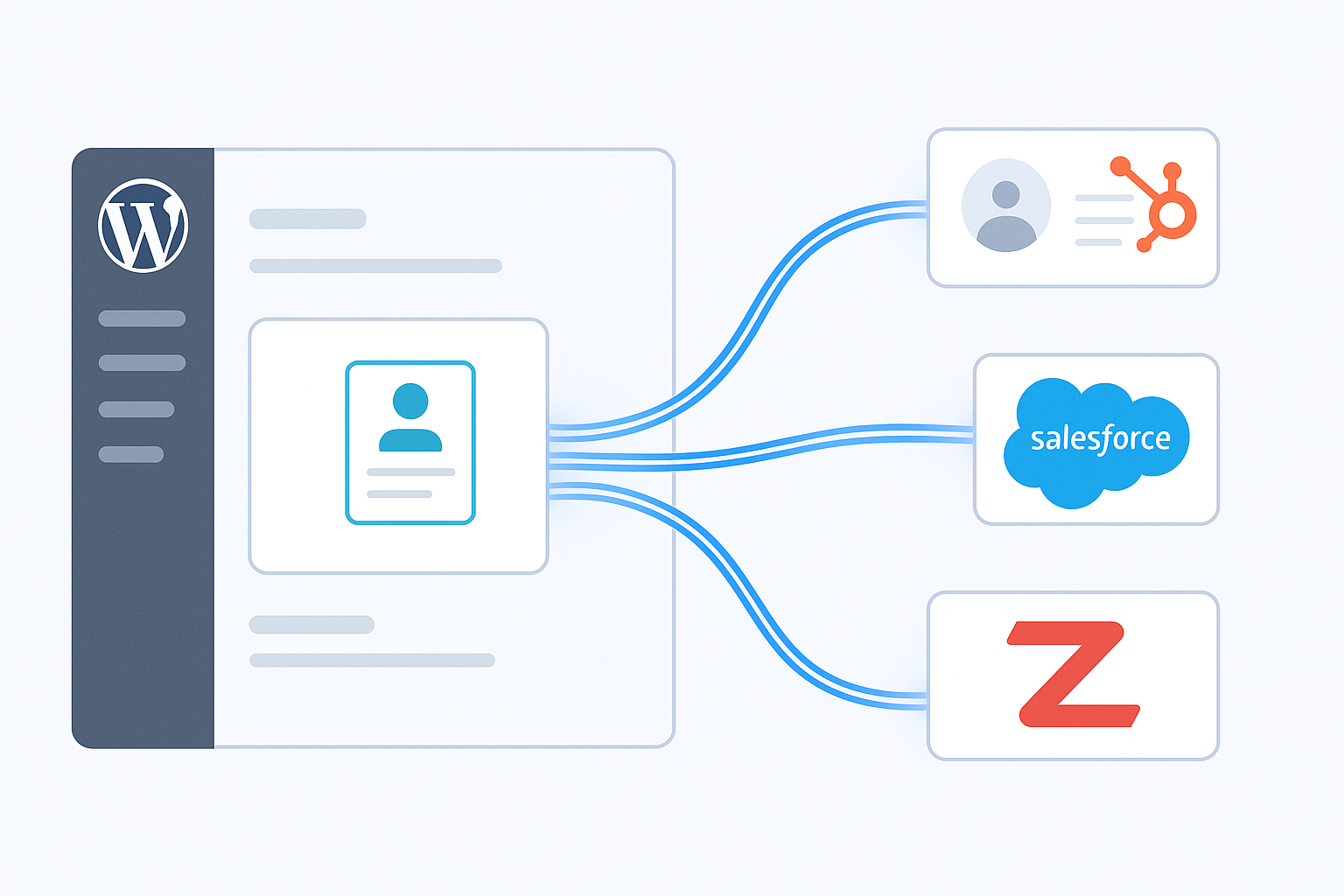
Your Gravity Forms submissions are piling up in the WordPress dashboard, but your sales team is still manually copying leads into their CRM. Every hour of delay between a form submission and CRM follow-up costs you conversions. Research from Lead Response Management studies consistently shows that responding to a lead within five minutes makes you 21 times more likely to qualify that lead compared to waiting 30 minutes. The fix is straightforward: connect Gravity Forms directly to your CRM so every submission flows into your sales pipeline automatically.
This guide walks you through integrating Gravity Forms with three of the most popular CRM platforms — HubSpot, Salesforce, and Zoho CRM — using native add-ons, third-party connectors, and automation tools. By the end, you will have a working integration that eliminates manual data entry and gets leads to your team in real time.
Prerequisites
- A WordPress site running Gravity Forms 2.8 or later
- A Gravity Forms Elite license ($259/year) — required for all native CRM add-ons
- An active account on your target CRM platform (HubSpot, Salesforce, or Zoho)
- WordPress admin access to install and configure add-ons
- A test form with at least Name, Email, Phone, and Company fields
If you are running Gravity Forms Basic or Pro licenses, you will need to upgrade to Elite for native CRM add-on access. Alternatively, the third-party integration methods covered at the end of this guide work with any Gravity Forms license tier.
Step 1: Install the CRM Add-On for Your Platform
Navigate to Forms → Add-Ons in your WordPress admin dashboard. Locate the add-on for your CRM platform and click Install. Gravity Forms provides native add-ons for HubSpot, Salesforce, and Zoho CRM, each installable directly from this screen.
Once installed, activate the add-on and navigate to Forms → Settings, then click the tab for your CRM (HubSpot, Salesforce, or Zoho). This is where you will authenticate your CRM account.
Expected result: The CRM tab appears in your Gravity Forms settings, showing a connection button or authentication prompt.
Step 2: Authenticate Your CRM Account
Each CRM uses a slightly different authentication method, but all three rely on secure OAuth 2.0 or API key connections.
HubSpot Authentication
Click Connect to HubSpot on the HubSpot settings page. You will be redirected to HubSpot’s authorization screen where you grant Gravity Forms permission to access your account. If you use a private HubSpot app instead of OAuth, paste your private app token and ensure the read scope is enabled in your HubSpot app settings. The official HubSpot add-on documentation covers the full authentication flow.
Salesforce Authentication
Click Connect to Salesforce on the Salesforce settings page. Authenticate with your Salesforce production credentials. One important caveat: the native Gravity Forms Salesforce add-on does not support Salesforce Sandbox environments. You must connect to your production Salesforce instance. See the Salesforce add-on setup guide for detailed steps.
Zoho CRM Authentication
The Zoho add-on uses OAuth 2.0. Click the connect button and authorize Gravity Forms to access your Zoho CRM account. You can also connect multiple Zoho accounts if you manage CRM data across different Zoho organizations. The Zoho CRM add-on setup guide walks through each authorization step.
Expected result: After authentication, you should see a success message confirming the connection, such as “Signed into Salesforce” or “Connected to HubSpot.”
If authentication fails, double-check that your CRM account has API access enabled. Some CRM plans restrict API access to higher tiers, and expired or rotated API tokens are a common cause of connection failures.
Built by Odd Jar
Know Exactly How Your Forms Are Performing
Form Analytics Pro gives you conversion rates, abandonment tracking, and field-level analytics for every Gravity Forms form — zero configuration required. No Google Analytics needed.
Step 3: Create a CRM Feed for Your Form
With authentication complete, open the form you want to connect and navigate to Settings → [CRM Name]. Click Add New Feed to create a new integration feed. A feed tells Gravity Forms what to do with each submission — specifically, which CRM object to create or update and how to map the form fields.
Selecting the CRM Object
Choose the type of CRM record to create. The options depend on your CRM:
| CRM | Supported Objects |
|---|---|
| HubSpot | Contacts, Companies, Deals |
| Salesforce | Contacts, Leads, Accounts, Opportunities, Cases, Orders |
| Zoho CRM | Contacts, Leads, Accounts, Cases, Opportunities, Orders |
For most lead generation forms, select Contacts or Leads as the target object. Salesforce users often start with Leads since Salesforce supports automatic lead-to-contact conversion in their sales workflow.
Step 4: Map Your Form Fields to CRM Properties
Field mapping is the core of the integration. You need to tell Gravity Forms which form field corresponds to which CRM field. At minimum, map these fields:
- Email (required for all three CRMs — this is the unique identifier for contacts)
- First Name and Last Name
- Phone Number
- Company / Organization
For each mapping row, select the Gravity Forms field on the left and the corresponding CRM property on the right. If you have custom properties in your CRM (such as “Lead Source” or “Product Interest”), you can map those as well.
Mapping Tips for Choice-Based Fields
When mapping dropdown, radio button, or checkbox fields, the values in your Gravity Forms field must exactly match the expected values in your CRM. HubSpot is particularly strict about this. Enable Show Values in your Gravity Forms field settings and set each choice’s value to match the CRM property values precisely. Case sensitivity matters. If you run into issues with conditional fields not behaving as expected, our conditional logic troubleshooting guide covers the most common fixes.
For HubSpot specifically, if you have a boolean-type property (like a newsletter opt-in), set the “off” choice value to “false” in your form’s field settings.
Expected result: Each form field is paired with a CRM property. The mapping screen shows all configured field pairs without validation errors.
Step 5: Configure Conditional Logic and Multiple Feeds
Conditional logic controls when a feed executes. Without it, every form submission triggers the CRM integration. With conditional logic enabled, you can set rules like “only create a Salesforce Lead if the Budget field is greater than $5,000” or “send to HubSpot only if the user selected ‘Request Demo’ from the inquiry type dropdown.”
To enable conditional logic, check the Enable Conditional Logic box at the bottom of your feed settings and define your conditions.
Using Multiple Feeds for Complex Workflows
A single form can have multiple CRM feeds. This is useful for scenarios such as:
- Different CRM objects: Feed 1 creates a Contact, Feed 2 creates an Opportunity linked to that Contact
- Conditional routing: Route enterprise leads to Salesforce and small business leads to HubSpot
- Department-specific handling: Support requests go to a CRM Case, sales inquiries go to a CRM Lead
Each feed operates independently, so you can combine conditional logic with multiple feeds to build sophisticated lead routing without any custom code. For broader automation ideas beyond CRM feeds, check out our WordPress workflow automation guide.
Step 6: Test the Integration
Before sending live traffic through your integrated form, submit two to three test entries and verify the data appears correctly in your CRM.
- Open your form’s preview or front-end page
- Submit a test entry with recognizable data (use a test email like
[email protected]) - Log into your CRM and search for the test contact
- Verify all mapped fields populated correctly
- Check that custom properties, choice-based fields, and conditional feeds behaved as expected
Expected result: Your test contact appears in the CRM within seconds of form submission, with all mapped fields populated accurately.
If the test data does not appear, navigate to Forms → Entries in WordPress and check the entry’s processing log for error messages. Common issues include expired API tokens, field value mismatches on choice-based fields, and CRM-side required fields that are not mapped in the feed.
Alternative Integration Methods
The native add-ons offer the most reliable, real-time experience, but they require an Elite license. Here are alternative approaches that work with any Gravity Forms license tier.
Zapier Integration
The Gravity Forms Zapier add-on (also Elite-only) connects your forms to 5,000+ apps, including every major CRM. It works by triggering a “Zap” when a new entry is created, then pushing that data to your CRM. The tradeoff is a slight delay (usually under a minute) and Zapier’s per-task pricing, which adds up on high-volume forms.
Webhooks for Custom Integrations
The Webhooks add-on sends a JSON payload to any URL when a form is submitted. If your CRM exposes a REST API endpoint for creating records, you can point the webhook directly at it. This method requires more technical setup but gives you complete control over the data format and destination. It is a strong option for CRMs without native Gravity Forms support, such as Pipedrive, Monday CRM, or custom-built systems.
Third-Party Connector Plugins
Plugins like WP Fusion and CRMPerks provide CRM integrations that work independently of Gravity Forms license tier. WP Fusion, for example, supports real-time syncing with Salesforce and includes additional automation features like tag-based triggers. CRMPerks offers a free Zoho CRM add-on on wordpress.org that handles contact creation, field mapping, and OAuth authentication without requiring Elite. For a broader look at Gravity Forms’ ecosystem of extensions, see our roundup of time-saving Gravity Forms add-ons.
Built by Odd Jar
Keep Your Gravity Forms Data in Sync Automatically
Field Sync connects your Gravity Forms entries so when data changes in one form, related entries update automatically. No manual updates, no inconsistent data.
Troubleshooting Common Issues
| Issue | Likely Cause | Fix |
|---|---|---|
| Data not appearing in CRM | Expired API token or OAuth session | Re-authenticate in Forms → Settings → [CRM] |
| Choice field values wrong in CRM | Form values don’t match CRM property values | Enable Show Values in field settings; match case-sensitively |
| Feed not triggering | Conditional logic blocking submissions | Temporarily disable conditional logic; submit test; re-enable |
| Duplicate contacts created | Email field not mapped as unique identifier | Ensure Email is the primary mapped field for contact deduplication |
| Salesforce sandbox won’t connect | Native add-on only supports production | Use production instance or GravityWP API Connector for sandbox |
If a feed fails silently, check the Gravity Forms entry log under Forms → Entries → [Entry] → Notes. CRM add-ons typically log API response codes and error messages here, making it the first place to diagnose integration failures. If notifications are also failing, our contact form email troubleshooting guide can help resolve email delivery issues alongside your CRM feed.
Next Steps After Integration
Once your Gravity Forms to CRM pipeline is running, you have a real-time connection between your WordPress site and your sales team’s daily workflow. Every form submission becomes a CRM record that can trigger automated follow-ups, assignment rules, and nurture sequences without any manual intervention.
From here, consider monitoring which forms generate the most qualified leads and where visitors abandon forms before completing them. Understanding conversion patterns at the form level helps you refine both your forms and your CRM workflows over time. If you want to see exactly which forms convert well and which ones lose visitors, Form Analytics Pro (one of our own Gravity Forms add-ons) tracks conversion rates and field-level abandonment without any external analytics setup. You should also explore creating multiple feeds with conditional logic to route different lead types to the appropriate CRM pipeline or team member, turning a simple contact form into an intelligent lead distribution system.
