
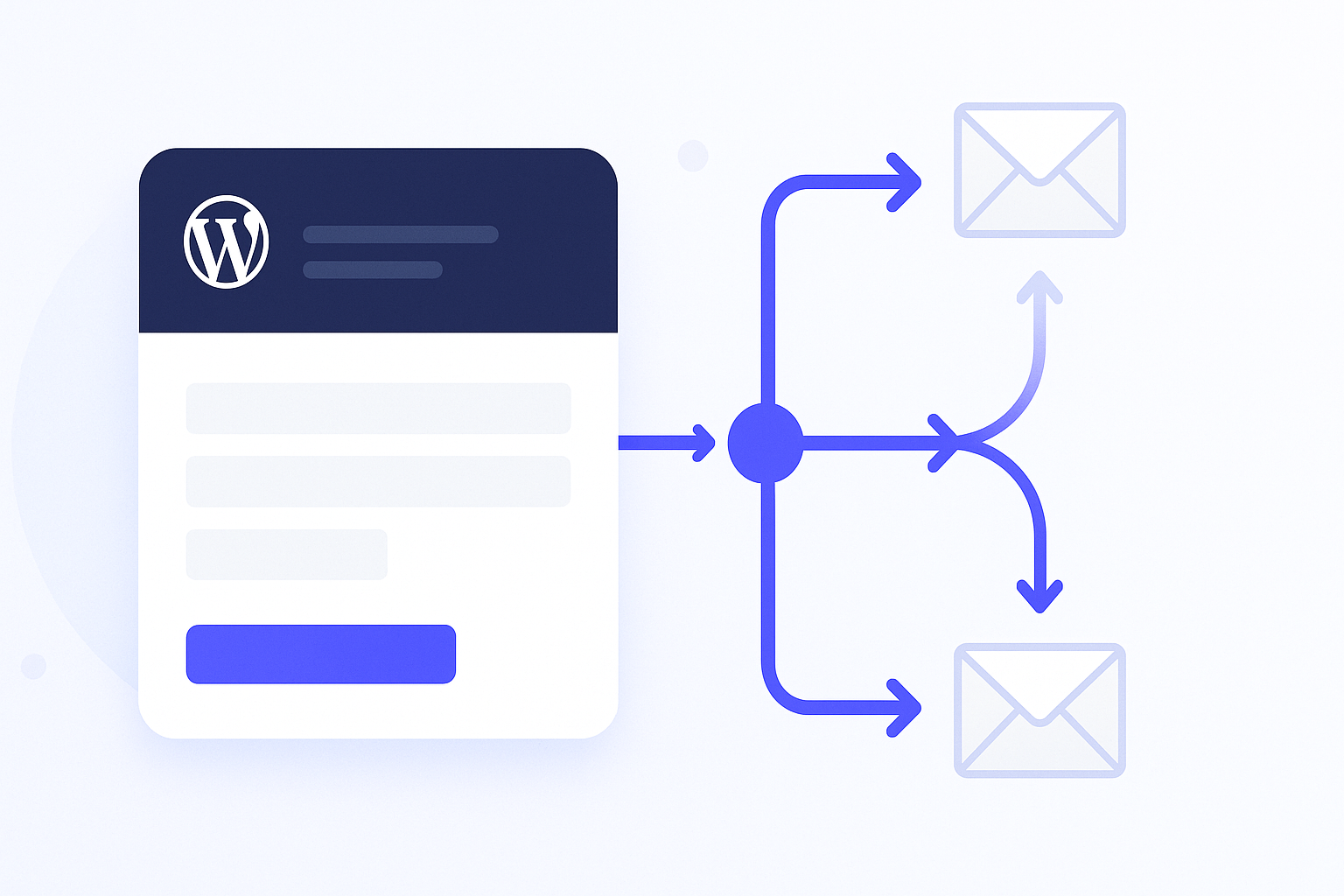
Every Gravity Forms submission triggers the same invisible question: did the right person actually receive that email? For sites handling job applications, support requests, or lead generation, a missed notification means a missed opportunity, and you may never know it happened.
The default WordPress mail function (wp_mail()) sends emails through your hosting server’s built-in mailer, which most email providers treat with suspicion. The result: notification emails land in spam folders, vanish entirely, or arrive hours late. Unauthenticated server-sent emails have rejection rates as high as 20-30% across major providers like Gmail and Outlook.
This guide walks through every layer of the Gravity Forms notification system, from basic admin alerts and user confirmations to conditional routing, merge tag personalization, SMTP authentication, and the DNS records that keep your messages out of spam.
How Gravity Forms Notifications Work
Gravity Forms separates post-submission actions into two categories: confirmations (what the user sees after clicking Submit) and notifications (emails sent behind the scenes). Every new form includes one default notification — the admin notification — configured to email the WordPress site administrator with a summary of submitted data.
Notifications are not limited to one per form. You can create as many as you need, each with its own recipient, trigger condition, and message content. Common configurations include:
- Admin notification — alerts your team that a new submission arrived
- User confirmation (autoresponder) — sends the submitter a receipt or thank-you message
- Department routing — directs the email to different staff members based on form field selections
- Conditional notification — fires only when specific conditions are met
To access notifications for any form, navigate to Forms → [Your Form] → Settings → Notifications in the WordPress admin. The notification list shows every configured notification along with its active or inactive status.
Setting Up the Admin Notification
The default admin notification ships with sensible defaults, but reviewing each field prevents common delivery failures.
Step 1: Open the notification editor. Go to Settings → Notifications and click the existing Admin Notification title.
Step 2: Configure the “Send To” field. Three options are available:
- Enter Email — type one or more email addresses separated by commas
- Select a Field — dynamically pull the recipient address from a form field
- Configure Routing — send to different recipients based on conditional logic (covered in the routing section below)
Step 3: Set the From Name and From Email. The From Email address is critical for deliverability. Always use an address that matches your domain (for example, [email protected]) rather than a free email address like Gmail or Yahoo. Mismatched sender domains are the single most common reason form emails end up in spam.
Step 4: Write the subject line. Use merge tags for dynamic subjects. A subject like New {form_title} submission from {Name (First):1.3} tells the recipient exactly what arrived without opening the email.
Step 5: Build the message body. The {all_fields} merge tag outputs every submitted value in a formatted layout. For a cleaner notification, build a custom message using individual field merge tags instead.
Step 6: Save and test. Click Update Notification, then submit a test entry to verify delivery.
Creating a User Confirmation Email
Autoresponders build trust and reduce support tickets by confirming that a submission was received. Setting one up takes about two minutes.
- Navigate to Settings → Notifications and click Add New.
- Name the notification something descriptive, like “User Confirmation.”
- Under Send To, select Select a Field, then choose the Email field from your form. This ensures the notification goes to whatever address the user entered.
- Set From Name to your brand name and From Email to a domain-matched address.
- Write a subject line the user will recognize:
We received your {form_title} submission. - Craft a message that acknowledges the submission, sets expectations for next steps, and includes a reference number using the
{entry_id}merge tag. - Click Save Notification.
If your form collects file uploads, you can enable Attach uploaded files to notification in the notification editor. This is especially useful for job application forms where the hiring team needs immediate access to resumes and cover letters.
Conditional Notification Routing
Routing sends notifications to different recipients based on what the user selected in the form, without creating separate notifications for each scenario. A single notification with routing logic replaces what would otherwise require five or six individual notifications.
How to Configure Routing
- Open the notification you want to add routing to (or create a new one).
- In the Send To section, select Configure Routing.
- For each routing rule, enter three things:
- The recipient email address
- The form field the condition checks (typically a dropdown or radio button)
- The operator and value (for example, Department is “Sales”)
- Click the + icon to add additional routing rules for other field values.
- Save the notification.
For a multi-location business, routing enables a single “Contact Us” form to direct sales inquiries to the New York office, support questions to the helpdesk team, and partnership inquiries to the business development lead — all without the user seeing any of that backend logic.
Routing Pitfalls to Avoid
Cover every possible selection. Unlike conditional logic, routing cannot prevent a notification from firing. If a user selects a value that does not match any routing rule, the notification processes with an empty Send To field and silently fails. Always create a routing rule for every option in your dropdown or radio button field.
Update routing after editing field choices. If you rename a dropdown option from “Jim” to “Samuel” after configuring routing, the routing rule still references “Jim” and stops matching. Whenever you edit field choices, revisit your routing configuration.
Use conditional logic for suppression scenarios. If you need to prevent a notification from sending entirely based on a condition, use the Conditional Logic toggle at the bottom of the notification editor rather than routing. Routing controls where the email goes; conditional logic controls whether it sends at all.
Personalizing Notifications with Merge Tags
Merge tags are placeholder tokens that Gravity Forms replaces with actual data when the notification fires. They work in the subject line, message body, From Name, and even the Send To field. The official notification documentation covers the full merge tag syntax.
Essential Merge Tags Reference
| Merge Tag | Output | Best Used In |
|---|---|---|
{all_fields} |
Every submitted field value | Admin notification body |
{form_title} |
The name of the form | Subject lines |
{entry_id} |
Unique entry number | Reference numbers in confirmations |
{entry_url} |
Direct link to the entry in admin | Admin notifications for quick access |
{date_mdy} |
Submission date (MM/DD/YYYY) | Timestamps in confirmations |
{ip} |
Submitter’s IP address | Security and fraud logging |
{Field Label:ID} |
A specific field’s submitted value | Personalized messages |
To insert a merge tag, click the {..} icon next to any text field in the notification editor. Gravity Forms displays a searchable dropdown of every available tag grouped by category.
Customizing {all_fields} Output
The {all_fields} tag supports modifiers for filtering which fields appear:
{all_fields:exclude[2,3]}— hides fields with IDs 2 and 3{all_fields:include[6]}— includes HTML fields and Section Break descriptions (hidden by default){all_fields:noadmin}— excludes fields marked as admin-only{all_fields:nohidden}— excludes hidden fields
These modifiers keep admin notifications focused on relevant data while removing internal-only fields from user-facing confirmations.
Know Exactly How Your Forms Are Performing
Form Analytics Pro gives you conversion rates, abandonment tracking, and field-level analytics for every Gravity Forms form — zero configuration required. No Google Analytics needed.
Fixing Deliverability with SMTP Authentication
The wp_mail() function used by default WordPress sends emails through your server’s PHP mailer. Most hosting providers share mail server IP addresses across thousands of sites, which means your form emails inherit the reputation of every other site on that server. If even one neighbor sends spam, your notifications suffer. If you have already run into this problem, our complete email fix guide covers the troubleshooting steps in detail.
SMTP (Simple Mail Transfer Protocol) authentication solves this by routing emails through a dedicated email service with established sender reputation, proper authentication headers, and delivery optimization.
Option 1: Gravity SMTP
Gravity Forms offers its own SMTP plugin, Gravity SMTP, which handles email routing for your entire WordPress site — not just Gravity Forms notifications, but every email sent through wp_mail(). It supports over a dozen email services including:
- Mailgun, SendGrid, and Postmark (transactional email specialists)
- Amazon SES (high-volume, low-cost sending)
- Brevo, formerly Sendinblue (marketing and transactional)
- Google Workspace and Gmail
- Microsoft 365 and Outlook
- Custom SMTP servers
Key features that set Gravity SMTP apart from generic SMTP plugins:
- Automatic backup connection — if your primary email service goes down, Gravity SMTP switches to a backup provider without any manual intervention
- Comprehensive email logging — every outgoing message is tracked with delivery status, timestamps, and recipient details
- One-click resend — retry failed messages directly from the activity log
- Activity digests — daily, weekly, or monthly email summaries of send volume, failures, and trends
- Built-in migration tool — imports settings from WP Mail SMTP if you are switching over
Gravity SMTP requires a Gravity Forms Elite license. The setup wizard walks through connecting your email service in under five minutes.
Option 2: WP Mail SMTP
For sites without a Gravity Forms Elite license, WP Mail SMTP is the most widely used alternative with over 3 million active installations. It supports similar email services and provides logging, email failure alerts, and a setup wizard. The free version covers basic SMTP configuration, while the premium tier adds detailed logging and multisite support.
DNS Records That Keep Emails Out of Spam
SMTP authentication routes your emails through a reputable service. DNS records prove to receiving mail servers that you authorized those emails to be sent on your domain’s behalf. Three records work together, and they must be added in a specific order.
Step 1: SPF (Sender Policy Framework)
SPF tells email providers which servers are allowed to send email for your domain. Add a TXT record to your domain’s DNS:
v=spf1 include:_spf.youremailservice.com ~all
Replace the include value with your SMTP provider’s SPF domain (for example, include:mailgun.org for Mailgun or include:sendgrid.net for SendGrid). If you already have an SPF record from another provider, combine them into a single record. Having two separate SPF records causes one to be ignored entirely.
SPF typically becomes active within 5 to 30 minutes after adding the DNS record.
Step 2: DKIM (DomainKeys Identified Mail)
DKIM adds a cryptographic signature to every outgoing email, verifying it was not altered in transit. Your SMTP provider generates a DKIM key pair and provides you with a CNAME or TXT record to add to your DNS. The record name typically follows the format selector._domainkey.yourdomain.com.
After adding the DKIM record, wait one to four hours for DNS propagation before testing. If you use Cloudflare, make sure the proxy toggle is turned off for DKIM CNAME records — proxying breaks DKIM verification.
Step 3: DMARC (Domain-based Message Authentication)
DMARC tells receiving mail servers what to do when SPF or DKIM checks fail. Add this after SPF and DKIM are both active and verified:
v=DMARC1; p=none; rua=mailto:[email protected]
Start with p=none (monitoring mode) to collect reports without blocking any email. After several weeks of clean reports confirming your legitimate emails pass authentication, tighten the policy to p=quarantine or p=reject.
Use a tool like MXToolbox to verify all three records are resolving correctly after setup.
Troubleshooting Notification Failures
When notifications stop arriving, work through these checks in order:
- Check the spam and junk folders. The most common “missing” notification is sitting in Gmail’s spam folder or Outlook’s junk mail.
- Verify the From Email domain matches your site. Sending from
[email protected]on a notification fromyourdomain.comtriggers spam filters on nearly every provider. - Review notification conditional logic. If conditional logic is enabled on the notification, test with entries that explicitly match the conditions.
- Test with a basic notification. Create a new notification with no conditional logic, no routing, and a static Send To address. If that notification delivers, the issue is in your routing or conditional logic configuration.
- Check your SMTP plugin logs. Both Gravity SMTP and WP Mail SMTP log every delivery attempt. Look for specific error messages like “550 rejected” (authentication failure) or “421 try again later” (rate limiting).
- Disable caching plugins temporarily. Object caching and full-page caching plugins can interfere with form submission processing and delay or prevent notification sends.
- Test for plugin conflicts. Deactivate all plugins except Gravity Forms and your SMTP plugin. If notifications work, reactivate plugins one at a time to identify the conflict. The official troubleshooting guide provides additional debugging steps.
Search All Your Gravity Forms Entries at Once
Global Search lets you search across every form, entry, field, and note from a single search box. Handles thousands of entries in seconds with a command-bar hotkey for instant access.
Notification Best Practices
These patterns consistently prevent problems across hundreds of Gravity Forms installations:
- Always use SMTP. Never rely on the default PHP mailer for production sites. A five-minute SMTP setup prevents hours of deliverability troubleshooting later.
- Match your From Email to your domain. This single change fixes the majority of email deliverability issues for WordPress forms.
- Test every routing path. Submit test entries for every possible dropdown selection, radio button choice, and conditional branch. Silent routing failures are invisible until a real user reports a missing response.
- Keep admin notifications lean. Use
{all_fields:exclude[...]}to remove large text areas, file upload fields, and admin-only fields from the email body. Link to the full entry with{entry_url}instead. - Configure a backup SMTP connection. If your primary email service experiences an outage, the backup ensures zero missed notifications. Gravity SMTP handles failover natively.
- Monitor delivery logs weekly. Even a 2% failure rate on 500 monthly submissions means 10 people who never received a response. Catch failures proactively before users report them.
- Set Reply-To headers. On admin notifications, set the Reply-To field to the submitter’s email address so your team can respond directly from their inbox without manually copying the address.
- Track notification performance. If you want visibility into which forms are converting and where users drop off, our Form Analytics Pro plugin provides zero-config conversion rates and abandonment tracking for every Gravity Forms form — useful for identifying forms where notification issues may be hurting your response rates.

