Loom for Gravity Forms

Loom for Gravity Forms integrates Loom's video recording capabilities directly into Gravity Forms. Say goodbye to lengthy text responses and hello to engaging, personalized video submissions. Whether you're collecting customer testimonials, conducting video surveys, or receiving detailed product feedback, this plugin empowers your users to express themselves clearly and effortlessly. With just a click, form respondents can record their screen, camera, or both, adding a new dimension to your data collection.

🚀 Now at version 1.1.0 (Released 8/26/2026)

Screenshots
What does it do?

  • Enables users to record and submit Loom videos directly within Gravity Forms (no login, account, or extension required for users)
  • Integrates seamlessly with existing Gravity Forms fields and add-ons
  • Simplifies video submissions by eliminating the need for external recording and uploading
  • Allows form creators to add Loom recording fields to any Gravity Form
  • Supports conditional logic, multi-page forms, and AJAX forms
  • Enhances survey responses with rich, visual feedback through video submissions
  • Streamlines the collection of video testimonials, product reviews, and user feedback
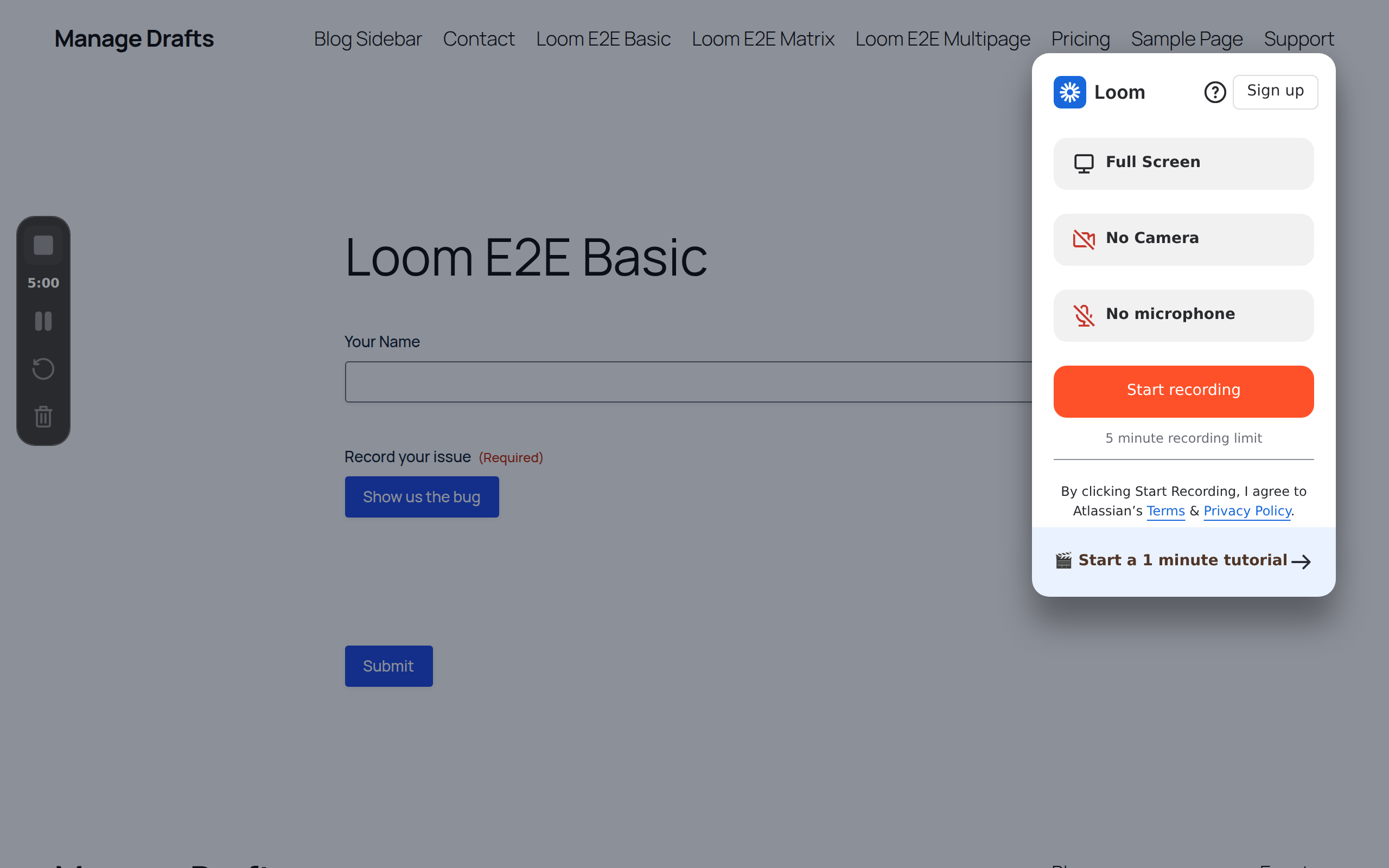
  • Allows the user to make screen recordings (great for software teams or product support)
  • Provides a user-friendly interface for recording screen, camera, or both within the form
  • Ensures secure video hosting and playback through Loom’s infrastructure
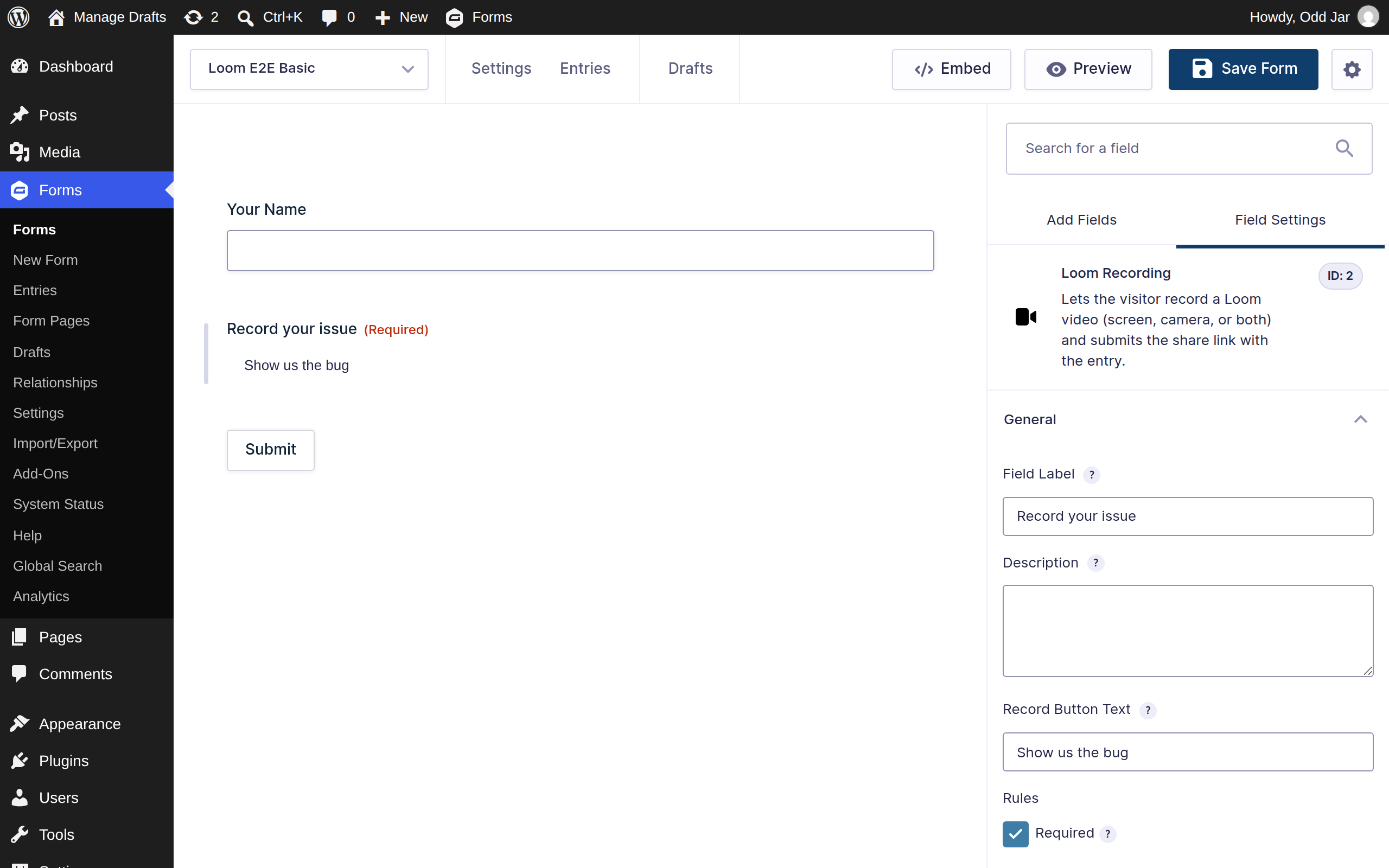
  • Lets you set the recording button’s text per field
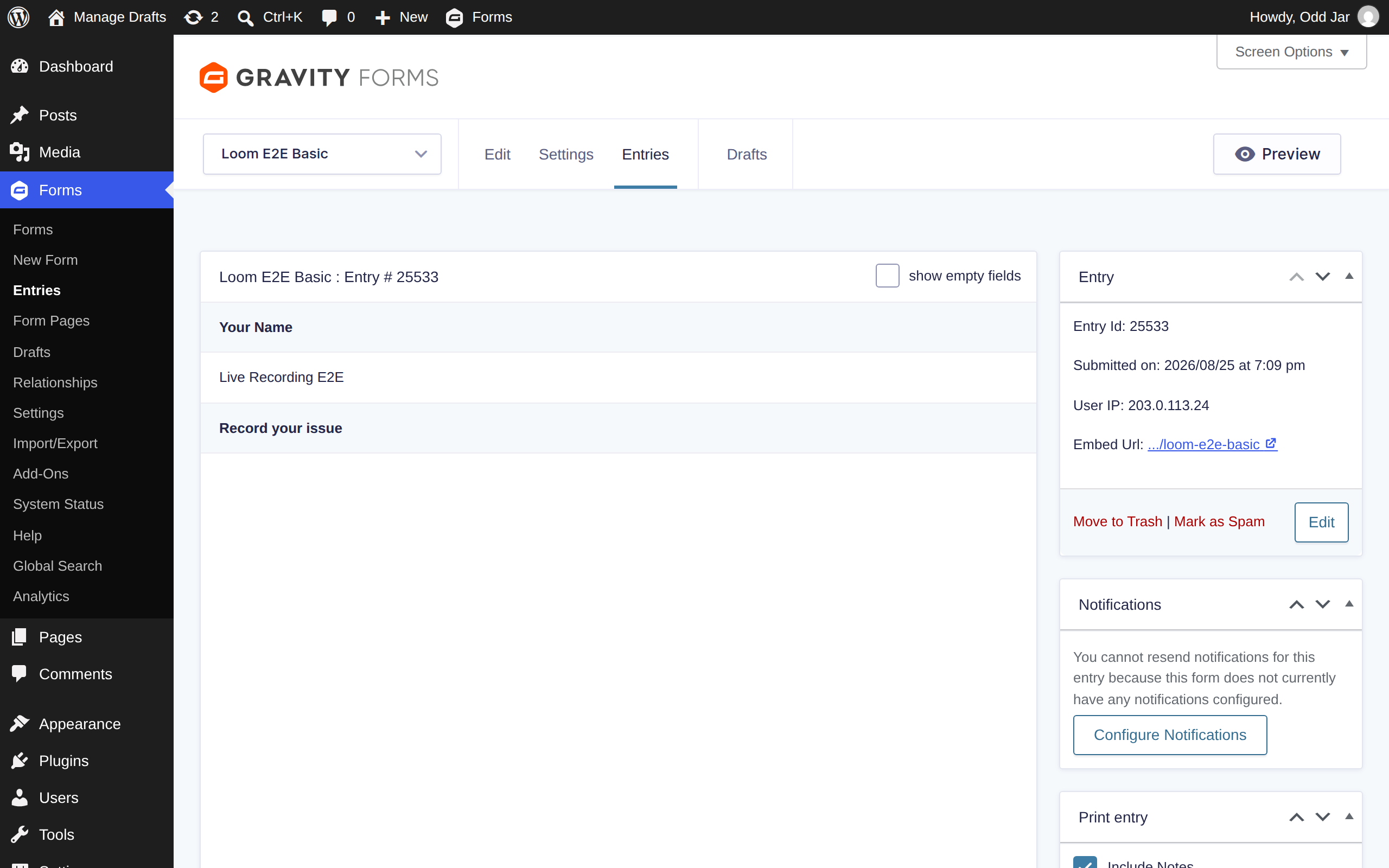
  • Plays submitted videos right on the entry detail screen; entry lists link them
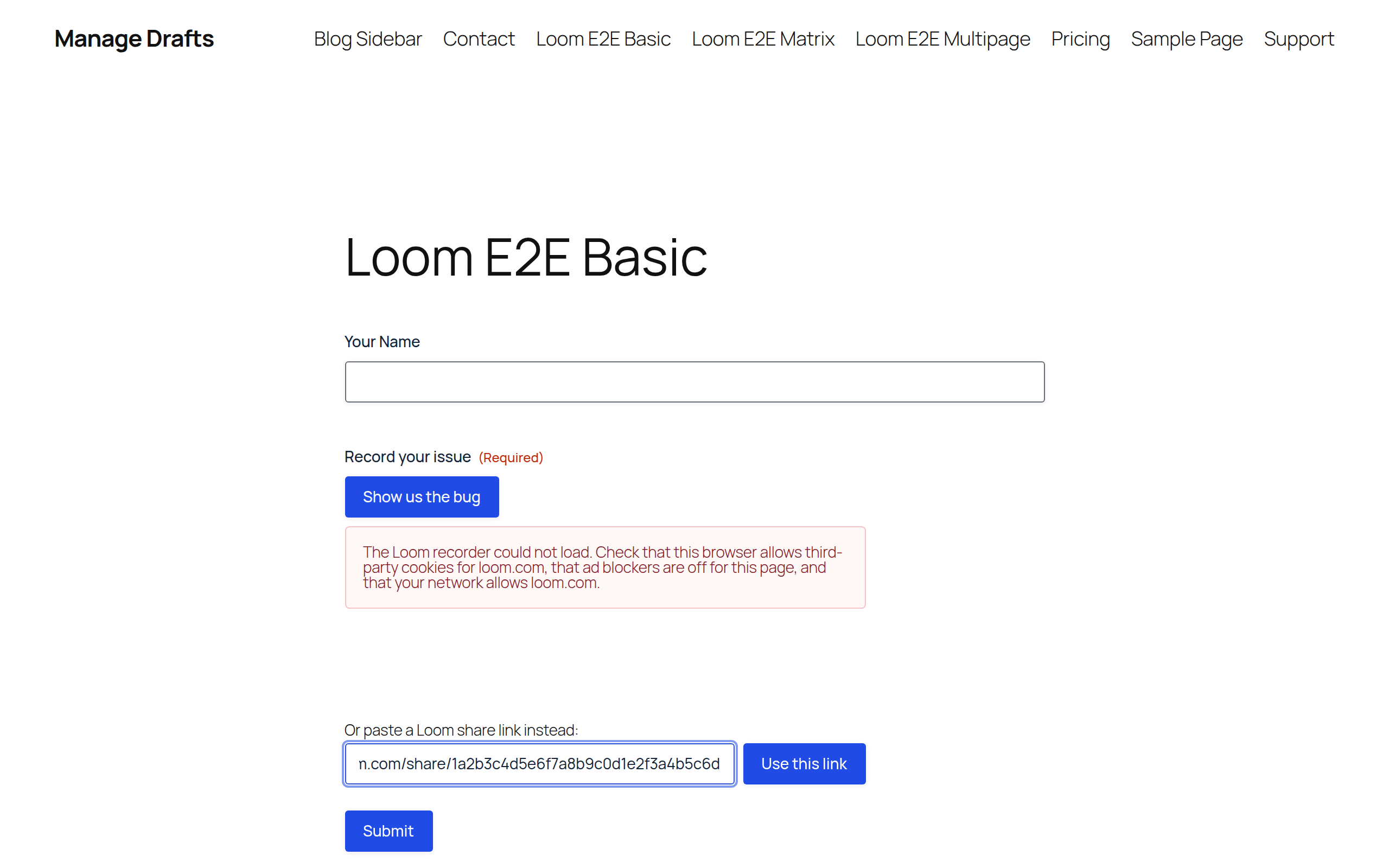
  • Tells the visitor plainly when recording cannot start — and accepts a pasted Loom link instead, so the submission still goes through
  • Accepts only genuine Loom share links, enforced on the server
  • Facilitates easy sharing and reviewing of video submissions within your team
  • Empowers users to express complex ideas or demonstrate processes visually
  • Boosts engagement and completion rates by offering an interactive form element

Loom Requirements

  • A Loom developer app (free to create at loom.com/developers); every domain your forms run on must be on its allowed-domains list
  • Supported only on desktop browsers (not mobile devices)
  • Recording browsers: Chrome, Edge & Brave, version 90 or later, with third-party cookies allowed (Loom does not support Safari or Firefox for browser recording)
  • Visitors on unsupported browsers can still paste a Loom share link into the form
  • Guest recordings: five per guest, five minutes each, capped at 720p (Loom’s limits)

Installation instructions

  • Upload and activate the Loom for Gravity Forms plugin in your WordPress admin panel
  • Set Up Loom Developer Account: Visit the Loom Developer Portal and create an account (free for Loom users)
  • Create a New Loom App: In the Loom Developer Dashboard, create a new app for web
  • Enter your website’s URL and every additional domain the form is served from — including www and bare-domain variants
  • Get Your Public App ID: In your app's dashboard, find and copy the "Public App ID"
  • Configure the Plugin: In WordPress, go to Forms > Settings > Loom
  • Paste your Loom Public App ID and save
  • Use Loom in Gravity Forms: Add the "Loom Recording" field to your forms
  • Test and Troubleshoot: Create a test form and ensure Loom recordings work correctly
  • Check browser compatibility (Chrome, Edge, or Brave) if issues arise
  • Enter your license key under Odd Jar → Licenses to enable updates

Frequently asked questions

What does the Loom for Gravity Forms plugin do?

This plugin integrates Loom video recordings directly into your Gravity Forms submissions. It allows users to record Loom videos while filling out a form and submit them as part of their response.

How does this plugin compare to other video submission options for Gravity Forms?

While Gravity Forms has built-in file upload fields that can handle video files, the Loom for Gravity Forms plugin offers a more streamlined experience. Users can record videos directly within the form without leaving the page, making it easier and faster to submit video content.

Do I need a Loom account to use this plugin?

Yes, you'll need a Loom account to set up the plugin. You'll need to obtain a Loom Public App ID from your Loom Developer Dashboard and enter it in the plugin settings.

Can I customize the appearance of the Loom recording button?

Each Loom field has a Record Button Text setting in the form editor, so the button can say whatever fits your form. For deeper styling, the field’s elements carry specific CSS classes you can target.

Is this plugin compatible with conditional logic in Gravity Forms?

Yes! The Loom field supports conditional logic, so you can show or hide the Loom recording option based on other form field values or user inputs.

How does this plugin handle form validation?

If the Loom field is required, the form will not submit without a video. The plugin also checks every submitted value on the server and accepts only genuine Loom share links.

How are the Loom videos displayed in the form entries?

The entry list shows a “View Loom Recording” link. The entry detail screen plays the video in an embedded player, with the share link beneath it.

What happens if a visitor’s browser can’t record?

The field says so, in plain words: which browsers work (Chrome, Edge, Brave), that third-party cookies must be allowed, and that ad blockers or firewalls may be in the way. It also offers a paste-a-link fallback, so anyone with a Loom link can still submit the form. If the recorder refuses to load for some people only, check that every hostname your form is served from is on your Loom app’s allowed-domains list.

How does this compare to the Gravity Forms Videocast Add-On?

While the Videocast Add-On allows for webcam recordings directly in the browser, the Loom for Gravity Forms plugin leverages Loom's powerful recording capabilities, including screen recording and camera options. It also integrates with users' existing Loom accounts.

Is there a limit to the length or size of Loom videos that can be submitted?

The plugin itself doesn't impose limits, but you'll need to adhere to Loom's own limitations based on your Loom account type.

Can I use this plugin with Gravity Forms Survey fields or Gravity Forms Quiz Add-On?

Yes! You can use Loom fields alongside any other Gravity Forms fields or add-ons, allowing for creative combinations like video responses in surveys or video explanations in quizzes.

Changelog

  • = 1.1.0 = — August 26, 2026
  • Updated to Loom’s current record SDK (4.12.4).
  • When the recorder cannot load — a blocked network, an unlisted domain, an unsupported browser — the field now says so in plain words and accepts a pasted Loom share link, so the submission still goes through.
  • The entry detail screen plays the video in an embedded player instead of a bare link.
  • New per-field Record Button Text setting.
  • Submitted values are checked on the server; only Loom share links are stored.
  • Recording buttons survive AJAX re-renders, multi-page steps, and conditional logic.
  • Field styling restored on Gravity Forms 3.
  • License management has moved to the shared Odd Jar → Licenses screen; existing activations carry over.
  • Tested against WordPress 7.1 and Gravity Forms 3.1.

Money back guarantee

We offer a 14-day refund period, no questions asked. If you’re not happy with your purchase, just let us know.