
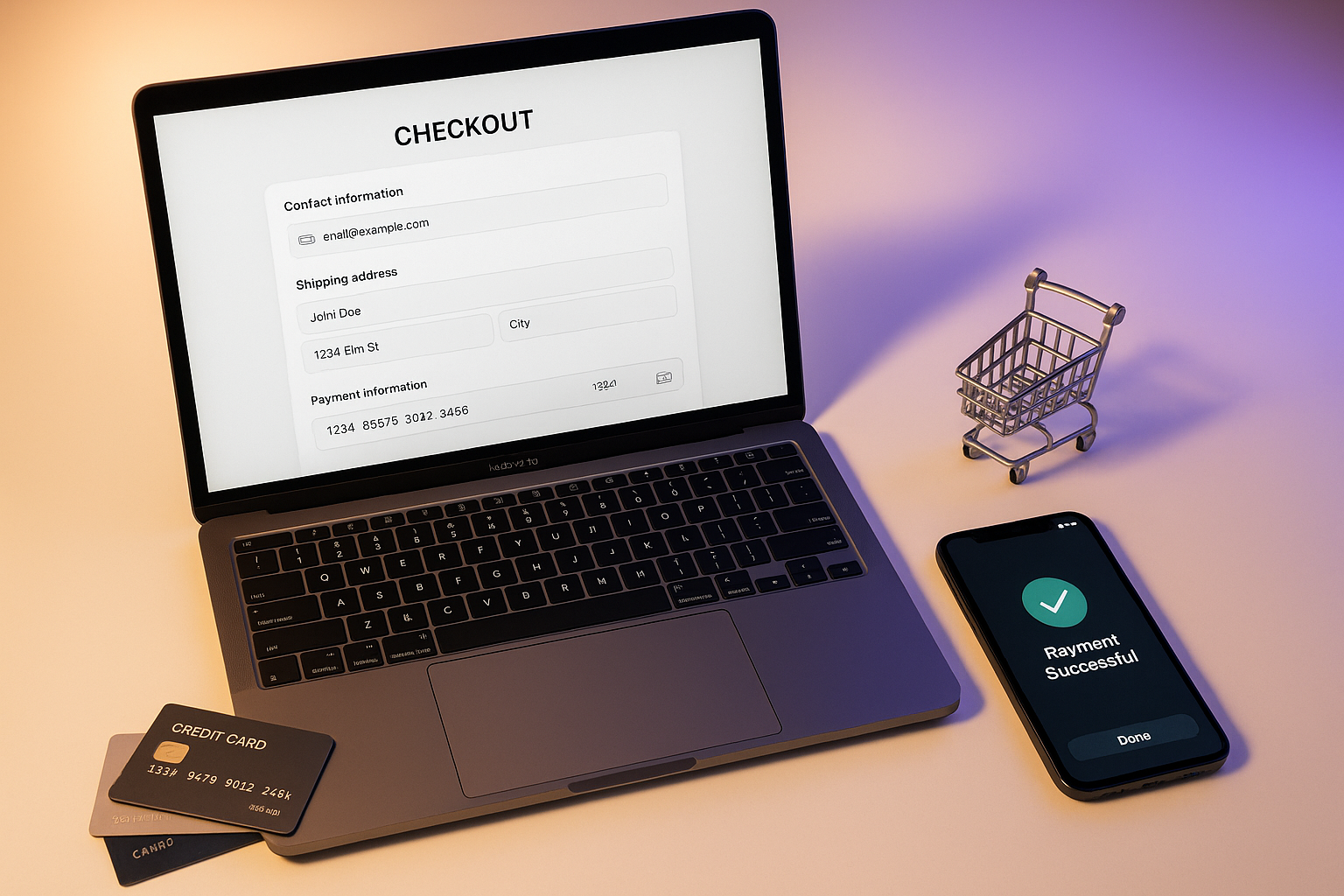
Your WooCommerce checkout is hemorrhaging sales right now. With cart abandonment rates hovering around 70% across e-commerce, every unnecessary field, slow-loading element, and confusing step represents customers walking away with money in their virtual carts. The checkout page is where purchasing decisions live or die, yet most store owners treat it as an afterthought.
The stakes are higher than ever in 2025. Mobile traffic now exceeds 70% of e-commerce visits, Google penalizes slow sites in search rankings, and shoppers expect Amazon-level convenience from every online store. One-second delays in checkout load time can slash conversions by 7%. A single required field that feels unnecessary triggers the “I’ll do this later” response that becomes “never.”
This guide delivers actionable WooCommerce checkout optimization strategies that address the full conversion funnel: speed improvements that shave seconds off load times, field reduction that removes friction, mobile-first design that respects thumb zones, and trust signals that overcome purchase hesitation. Each technique includes specific implementation steps, recommended plugins, and code snippets where applicable.
Why Checkout Optimization Matters More Than Ever
Cart abandonment represents the single largest leak in most WooCommerce stores’ revenue funnels. Research consistently shows that approximately 70% of shopping carts get abandoned before purchase completion. The primary drivers of this abandonment read like a checklist of checkout design failures.
Nearly half of all cart abandonments happen because of extra costs appearing at checkout, including shipping, taxes, and fees that weren’t visible earlier. Another 22% abandon because the checkout process takes too long or feels too complicated. Payment security concerns drive 18% away, while 14% cite slow website performance as their reason for leaving.
These numbers translate directly to recoverable revenue. A store processing $100,000 in monthly sales with a 70% abandonment rate is losing potential sales worth multiples of their current revenue. Even modest improvements yield significant returns: reducing abandonment from 70% to 65% on a six-figure store can add tens of thousands in annual revenue.
Speed Optimization: The Foundation of Checkout Performance
Checkout speed forms the foundation upon which all other optimization efforts rest. A slow checkout page undermines every other improvement you make. Users who wait more than three seconds for a page to load abandon at dramatically higher rates than those who experience sub-second performance.
Server and Hosting Considerations
Start by benchmarking your Time to First Byte (TTFB). If your checkout page TTFB exceeds one second, hosting infrastructure likely needs attention. Shared hosting plans that work adequately for browsing product pages often buckle under checkout load, particularly during peak traffic.
Upgrading to PHP 8.2 or higher delivers 20-30% faster execution compared to older versions. Many hosts still default to PHP 7.4 or 8.0, leaving significant performance on the table. Contact your host about enabling OpCache with appropriate settings: opcache.enable=1, opcache.memory_consumption=256, and realpath_cache_size=4096K.
Consider increasing PHP memory limits to 512MB for checkout pages that process complex cart calculations. The default 128MB or 256MB limits can cause timeout issues during peak traffic periods.
Strategic Caching for Dynamic Checkout
Checkout pages require nuanced caching strategies. Full-page caching that works brilliantly for product pages can break checkout functionality by serving stale cart data or payment tokens. The solution involves layered caching that targets static elements while preserving dynamic functionality.
Implement aggressive browser caching for static assets: CSS files, JavaScript, and images that don’t change between requests. Set cache headers for 30-day expiration on these resources. Use a content delivery network (CDN) to serve static files from edge locations closer to your customers.
For WooCommerce session data, object caching through Redis or Memcached accelerates cart calculations without risking stale data. Exclude checkout endpoints (/checkout/) from page cache rules while allowing upstream caching of product and cart pages.
Asset Optimization
Every JavaScript and CSS file loaded on checkout adds to processing time. Audit your checkout page using Chrome DevTools or GTmetrix to identify resources that aren’t essential to checkout functionality. Marketing scripts, slider plugins, and social media widgets have no business loading during checkout.
Plugins like Asset CleanUp or Perfmatters allow selective disabling of scripts and styles on specific pages. Create a checkout-specific rule that loads only WooCommerce core, your payment gateway, and essential functionality. The goal is a checkout page that loads in under two seconds on mobile connections.
Field Optimization: Less Is Definitively More
Every form field on your checkout page represents a decision point where customers can abandon. Research shows that SkyGeek achieved a 12% conversion boost simply by removing redundant fields and prefilling billing information as shipping information. The psychology is straightforward: fewer fields mean faster completion and less opportunity for second-guessing.
Fields to Remove or Disable
Start with ruthless field elimination. The following fields commonly appear on checkout pages despite rarely being necessary:
Company Name serves no purpose for B2C transactions. If wholesale customers need it, use conditional logic to show it only for wholesale user roles rather than cluttering everyone’s checkout.
Phone Number often appears as a legacy requirement. Unless your shipping carrier specifically requires phone numbers or you operate a high-touch business that calls customers, remove it. Shipping notifications work perfectly well via email.
Order Notes fields invite customers to write essays when they should be completing purchases. If special instructions matter for your products, consider a post-purchase survey instead.
Address Line 2 can usually be marked as optional rather than required. Many customers don’t have apartment numbers and get confused by the additional field.
Smart Conditional Fields
Rather than one-size-fits-all field reduction, conditional logic shows fields only when relevant. This approach maintains flexibility while reducing perceived complexity for most customers.
Product-based conditions work well for customizable items. Show engraving text fields only when engraved products appear in the cart. Display gift message options only when gift-wrap add-ons are selected.
Shipping method conditions streamline the experience for local pickup customers, who don’t need shipping address fields. Hide the entire shipping section when local pickup is selected, revealing only the customer name and contact information.
Payment method conditions keep irrelevant details hidden. Bank transfer customers need to see bank details; credit card customers don’t. Configure your checkout to reveal payment-specific instructions only for the selected method.
Recommended Field Editor Plugins
Checkout Fields for Blocks handles conditional field logic without code for stores using the block-based checkout. The interface allows creating conditions based on products, shipping methods, payment methods, user roles, and cart contents.
Conditional Checkout Fields for WooCommerce offers 15 field types with conditional display options for classic checkout themes. It handles everything from simple show/hide logic to complex multi-condition rules.
For stores seeking more control, Checkout Field Editor for WooCommerce provides granular field management including custom field types, placeholder text, CSS classes, and validation rules.
Mobile Checkout: Designing for Thumbs
With mobile traffic exceeding 70% of e-commerce visits, mobile checkout optimization isn’t optional; it’s where most of your sales happen or fail. Mobile users face unique constraints that desktop optimization ignores: smaller screens, touch-based input, variable connection speeds, and one-handed operation.
Touch Target Sizing
Mobile interface design centers on thumb reach and tap accuracy. Set minimum touch targets at 48×48 pixels, the size where accidental mis-taps become rare. Buttons, form fields, and interactive elements smaller than this threshold frustrate users who must repeatedly tap to hit their target.
Consider thumb zones when positioning critical elements. On phones, users typically hold their device with one hand and navigate with their thumb. The comfortable thumb reach area forms an arc from the bottom corner, making bottom-positioned elements easier to tap than those at the top or center of the screen.
Place the “Place Order” button in this comfortable zone. Sticky buttons that float at the bottom of the viewport keep the primary action always within reach, regardless of scroll position.
Single-Column Layouts
Abandon multi-column checkout layouts on mobile. Two-column designs that look elegant on desktop become cramped and confusing on phone screens. A single-column layout with logical section grouping guides users through checkout without horizontal scrolling or eye-tracking confusion.
Disable header and footer elements during checkout to maximize screen real estate. Navigation menus that make sense on product pages distract from the purchase flow during checkout. Create a focused experience that funnels attention toward completion.
Express Payment Options
One-click checkout through Apple Pay, Google Pay, and similar express payment methods eliminates most friction for returning customers. These payment methods auto-fill shipping addresses, billing information, and payment details from the user’s device wallet, reducing checkout to a single biometric confirmation.
WooCommerce Payments and Stripe both support express payment methods with minimal configuration. Display these options prominently at the top of checkout for logged-in customers with saved payment methods, offering the “fast lane” before the full form. For a deeper dive into payment gateway selection and configuration, see our complete WooCommerce payment gateways guide.
Input Optimization
Mobile form filling becomes easier with input type specifications that trigger appropriate keyboards. Email fields should use type="email" to display the @ symbol prominently. Phone fields use type="tel" for numeric keypads. These small details accumulate into meaningfully faster form completion.
Enable browser autofill by using standard field naming conventions. Chrome, Safari, and Firefox can auto-populate common fields like name, email, address, and phone number when form fields follow expected patterns. Avoid custom field names that prevent autofill detection.
Address autocomplete through Google Places API or similar services transforms address entry from a tedious multi-field process into a single searchable input. Users start typing their address, select from suggestions, and watch remaining fields populate automatically.
Trust Signals: Overcoming Purchase Hesitation
Payment security concerns drive roughly 18% of cart abandonment. Customers who’ve reached checkout have already decided they want your product. What stops them from completing the purchase is often uncertainty about whether sharing payment information with your store is safe.
SSL Certificate Visibility
Every WooCommerce store should operate over HTTPS, and most hosting providers now include free SSL certificates. However, the presence of SSL matters less than its visibility. Customers look for the padlock icon in their browser’s address bar, but many don’t know to look there.
Make security explicit with visual indicators on the checkout page itself. A “Secure Checkout” message near the payment form reinforces what the browser padlock represents. Lock icons, shield graphics, and encryption badges remind customers that their data is protected.
Payment Method Badges
Display logos for all accepted payment methods prominently on the checkout page. Visa, Mastercard, PayPal, American Express, Apple Pay, and Google Pay logos communicate legitimacy through familiar branding. Customers trust payment processors they recognize.
Position payment badges near the payment form where customers are about to enter credit card details. This placement answers the implicit question “Is my payment method accepted?” at the exact moment it arises.
Guarantee and Return Policy Badges
Money-back guarantees and clear return policies reduce perceived purchase risk. A “30-Day Money-Back Guarantee” badge near the order button communicates that the customer can reverse their decision if the product disappoints.
Free shipping and free returns badges, when applicable, address cost concerns that might otherwise surface during checkout. If you offer these policies, display them where customers consider final purchase commitment.
Third-Party Trust Badges
BBB accreditation, McAfee Secure, Norton Secured, and similar third-party certifications signal that external organizations vouch for your business. These badges carry weight with customers who don’t recognize your brand.
Obtain badges legitimately from the organizations they represent. Fake security badges can trigger customer complaints and potentially legal issues. If you can’t qualify for a particular certification, focus on badges you can earn authentically.
Checkout Flow Architecture
The structure of your checkout flow influences completion rates independent of individual field or design decisions. WooCommerce supports multiple checkout architectures, each with distinct advantages for different store types.
Single-Page Checkout
Single-page checkout consolidates all checkout steps onto one scrollable page. Customers see billing, shipping, and payment sections simultaneously, allowing them to complete everything without page transitions.
This architecture works best for stores with straightforward products and minimal checkout customization. The absence of page loads between steps removes waiting and maintains purchase momentum.
Plugins like WooCommerce One Page Checkout, CartFlows, and PeachPay convert standard multi-step checkout into single-page layouts with AJAX updates that avoid page reloads.
Multi-Step Checkout
Multi-step checkout breaks the process into sequential stages: cart review, shipping, billing, payment. Progress indicators show customers where they are and how much remains.
This approach reduces perceived complexity for stores with extensive checkout requirements. Breaking a 15-field checkout into three 5-field steps makes each step feel manageable, even though total fields remain unchanged.
FunnelKit Funnel Builder and Flux Checkout provide multi-step checkout builders with customizable step sequences, field arrangements, and visual styling.
Guest Checkout
Requiring account creation before purchase represents one of the most damaging conversion barriers. Customers who intend to buy once resent creating passwords they’ll immediately forget. Enable guest checkout as the default option, offering account creation as a post-purchase convenience.
WooCommerce enables guest checkout through WooCommerce > Settings > Accounts & Privacy. Check “Allow customers to place orders without an account” and consider enabling “Allow customers to create an account during checkout” as an optional addition rather than requirement.
Performance Monitoring and Testing
Checkout optimization requires ongoing measurement, not one-time fixes. Implement monitoring that tracks checkout performance metrics continuously, alerting you to degradation before it impacts significant revenue.
Key Metrics to Track
Checkout Page Load Time should stay under three seconds on mobile connections. Measure using Google PageSpeed Insights, GTmetrix, and real user monitoring tools that capture actual customer experience.
Cart Abandonment Rate establishes your baseline and measures improvement. WooCommerce Analytics provides native abandonment tracking. Aim to reduce abandonment below 60%, with top-performing stores achieving 50% or lower.
Checkout Conversion Rate measures what percentage of customers who view checkout actually complete purchase. Industry benchmarks range from 35-65% depending on product type and price point.
Payment Error Rate tracks failed transactions. Rates above 1% suggest payment gateway configuration issues or customer trust problems that merit investigation.
A/B Testing Checkout Changes
Make checkout changes incrementally and measure results before proceeding. A/B testing tools like Google Optimize or dedicated WooCommerce testing plugins let you show different checkout versions to different visitors, comparing conversion rates with statistical significance.
Test one variable at a time: button color, field removal, layout change. Testing multiple simultaneous changes prevents you from knowing which change caused observed results.
Recommended Plugin Stack
The following plugins address the optimization areas covered in this guide. You don’t need all of them; select based on your specific bottlenecks.
Speed Optimization: WP Rocket or LiteSpeed Cache for caching, Asset CleanUp for script management, Autoptimize for asset minification. For more caching plugin comparisons, see our WordPress caching plugins performance guide.
Checkout Layout: CartFlows or FunnelKit Funnel Builder for single-page or multi-step checkout rebuilds, Checkout Field Editor for field management.
Mobile Optimization: Any of the checkout layout plugins above include mobile optimization. Pair with Autoptimize for additional mobile performance gains.
Trust Signals: CheckoutWC includes built-in trust badge functionality. SeedProd allows custom checkout page building with drag-and-drop badge placement.
Recovery: AutomateWoo or CartFlows for abandoned cart email sequences, OptinMonster for exit-intent popups.
Implementation Roadmap
Apply checkout optimization systematically rather than randomly. The following sequence addresses highest-impact issues first.
Week 1: Baseline and Speed – Measure current checkout performance and abandonment rate. Implement caching, upgrade PHP version, and remove unnecessary scripts from checkout page. Target: checkout load time under 3 seconds.
Week 2: Field Reduction – Audit every checkout field for necessity. Remove or make optional any field not strictly required for order fulfillment. Target: reduce visible fields by 30% or more.
Week 3: Mobile Optimization – Test checkout on multiple phone models and screen sizes. Adjust touch targets, implement single-column layout, add sticky order button. Target: equivalent mobile and desktop conversion rates.
Week 4: Trust and Testing – Add security badges and payment method logos. Enable guest checkout if not already active. Set up A/B testing for ongoing optimization. Target: establish testing framework for continuous improvement.
Checkout optimization delivers compounding returns. Each improvement builds on previous work, and the revenue gains fund further optimization investment. Start with the highest-impact changes this week, measure results, and iterate toward the checkout experience your customers deserve.
