
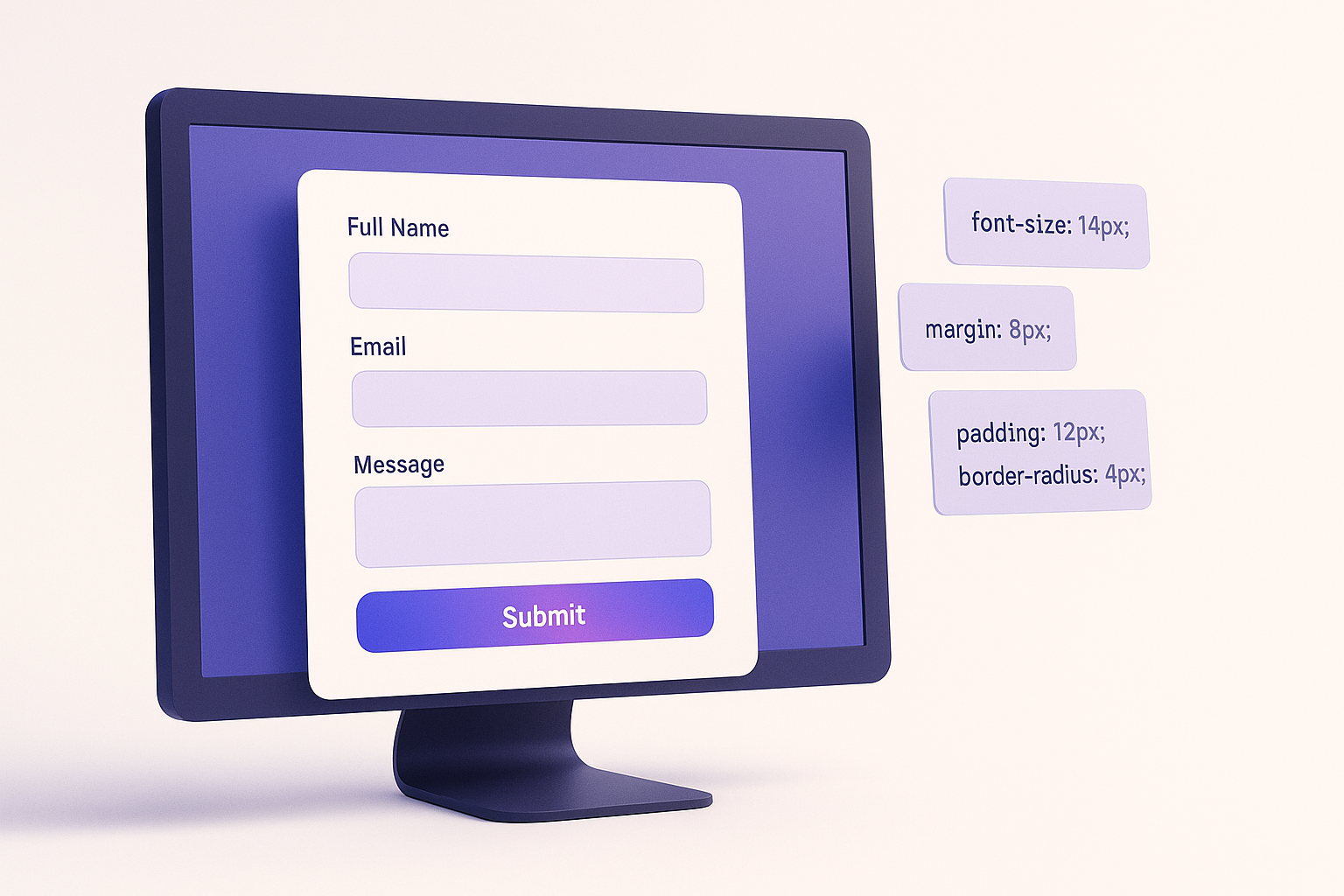
Every Gravity Forms installation ships with the same default look. That default is clean enough, but the moment you drop a form onto a page with distinct branding, the mismatch is obvious. Visitors notice. Conversion rates feel it.
The good news: Gravity Forms now offers three distinct layers of styling control, from a zero-code visual editor all the way down to custom CSS selectors. Whether you want to swap a few colors or rebuild a form from scratch to match a design comp, there is a path that fits your skill level.
This guide walks through every method, starting with the simplest and progressing to the most flexible.
The Three Layers of Gravity Forms Styling
Before diving into specific techniques, it helps to understand the three distinct approaches to styling Gravity Forms. Each layer builds on the one before it, giving you progressively more control.
| Layer | Method | Skill Level | Best For |
|---|---|---|---|
| 1 | Orbital Theme (Block Editor) | No code required | Brand colors, input sizes, button styling |
| 2 | CSS Ready Classes | Beginner-friendly | Multi-column layouts, list formatting, alert banners |
| 3 | Custom CSS | Intermediate to advanced | Pixel-perfect design, conditional styling, hover effects |
Most site owners will handle everything they need with Layers 1 and 2 combined. Layer 3 is there when you need total creative control.
Layer 1: The Orbital Theme and Block Editor Styling
Gravity Forms 2.7 introduced the Orbital theme, a built-in form design system that replaced the old approach of inheriting whatever your WordPress theme decided to do with form elements. With Orbital active, you control the visual presentation directly from the WordPress block editor sidebar.
Enabling Orbital Globally
To apply Orbital to every form on your site at once:
- Navigate to Forms → Settings in the WordPress dashboard.
- Scroll past your license details to the Default Form Theme setting.
- Select Orbital from the dropdown.
- Save changes.
Sites that installed Gravity Forms after version 2.7.15 already have Orbital set as the global default. Older installations still default to the Gravity Forms 2.5 theme, which inherits styles from your active WordPress theme instead.
Enabling Orbital on a Single Form
If you only want Orbital on specific forms (leaving others with the legacy look), you can enable it per form block:
- Add a Gravity Forms block to your page or post.
- Select the form you want to embed.
- In the right sidebar, open Form Styles.
- Change Form Theme to Orbital.
You can also set the theme via shortcode:
.
What Orbital Lets You Customize
With the Orbital theme active, the block editor sidebar exposes four styling panels. For full technical details, see the official form themes and style settings documentation.
Input Styles — Controls the size, border radius, background color, border color, and text color for all form fields. This is where you match your form inputs to your site’s design language.
Label Styles — Adjusts font size and text color for the labels above each field. Particularly useful when your theme uses a specific heading color that should carry through to forms.
Description Styles — Changes the font size and text color for field descriptions and helper text shown below inputs.
Button Styles — Sets the background color and text color for the submit button and any other buttons on the form.
Copy and Paste Styles Between Forms
Once you style one form, you can replicate those styles instantly. Click the Gravity Forms block, open the block toolbar menu, and select Copy Form Styles. This copies a JSON string representing your configuration. Navigate to another form block, open its toolbar menu, and choose Paste Form Styles.
That JSON string looks something like this:
{"theme":"orbital","inputSize":"md","inputBorderRadius":"5","inputBorderColor":"#686e77","inputBackgroundColor":"#fafafa","inputColor":"#112337","inputPrimaryColor":"#c14142","labelFontSize":"16","labelColor":"#112337","descriptionFontSize":"12","descriptionColor":"#a2a2a2","buttonPrimaryBackgroundColor":"#4c3b74","buttonPrimaryColor":"#fff"}This same string can be passed to the shortcode via the styles parameter or applied programmatically through the gform_default_styles filter for developers managing styles across many forms.
Live Preview in the Block Editor
To see your styling changes in real time, click the Gravity Forms block, then open the Advanced section in the sidebar and toggle Preview to on. The form renders directly in the editor with your style settings applied.
One caveat: if your theme or other plugins inject custom styles for Gravity Forms, the live preview may not be a perfect match for the published page. Always confirm on the frontend before going live.
Layer 2: CSS Ready Classes for Layout Control
The Orbital theme handles colors, sizing, and typography. But what about field layout? That is where CSS Ready Classes come in. These are predefined class names that you add to individual fields to activate built-in layout styles.
How to Add a Ready Class
- Open the form in the Form Editor.
- Click the field you want to modify.
- Under the Appearance tab in the settings sidebar, find the Custom CSS Class input.
- Type the Ready Class name (or multiple names separated by spaces).
- Save the form.
Ready Classes do not appear in the Form Editor preview. Save the form and check the built-in Preview or your published page to see the effect.
Multi-Column Field Layouts
Gravity Forms 2.5 introduced a native column drag-and-drop feature in the form editor that handles most multi-column needs. However, CSS Ready Classes remain available for backward compatibility and for situations where fine-grained control matters.
| Layout | Classes to Apply | Notes |
|---|---|---|
| 2 columns | gf_left_half + gf_right_half |
Apply to adjacent fields; top label layout only |
| 3 columns | gf_left_third + gf_middle_third + gf_right_third |
Apply to three adjacent fields |
| 4 columns | gf_first_quarter through gf_fourth_quarter |
Apply to four adjacent fields |
| Inline (fluid) | gf_inline |
Horizontal layout without equal spacing |
Checkbox and Radio Button List Formatting
Long lists of checkboxes or radio buttons can make forms feel overwhelming. Ready Classes let you reformat them into organized columns:
gf_list_2colthroughgf_list_5col— Arranges choices into that number of columns, filling left to right then top to bottom.gf_list_2col_verticalthroughgf_list_5col_vertical— Same column counts but fills top to bottom, left column first.gf_list_inline— Renders choices horizontally in a single flowing line.
Alert Banners with HTML Fields
Need to display a notice or message inside your form? Add an HTML field and apply one of the alert classes:
gf_alert_green— Success or confirmation messagesgf_alert_red— Errors or warningsgf_alert_yellow— Caution or informational notesgf_alert_blue— Neutral informationgf_alert_gray— Subdued or secondary messages
Utility Classes
A few additional Ready Classes handle specific situations:
gf_scroll_text— Converts a section break into a scrollable text box, ideal for displaying terms of service without stretching the form.gf_hide_ampm— Hides the AM/PM selector on time fields (the value is still captured in the entry).gf_hide_charleft— Hides the “characters remaining” counter on paragraph fields.gf_invisible— Hides a field from the user, useful for product fields or hidden calculations where the visibility toggle is not available.
Layer 3: Custom CSS for Complete Design Control
When the Orbital theme and Ready Classes cannot achieve the exact look you need, custom CSS gives you full control. This is the approach designers and developers use to create pixel-perfect forms that match a brand identity precisely.
Understanding Gravity Forms CSS Selectors
Every Gravity Forms element uses a predictable naming convention, making it straightforward to target specific parts of any form. The CSS targeting examples documentation provides the full selector reference.
Target a specific form:
#gform_wrapper_1 { /* Targets the wrapper of form ID 1 */ }
#gform_1 { /* Targets form ID 1 directly */ }
Target a specific field:
#field_1_3 { /* Targets field 3 in form 1 */ }
#field_1_3 input { /* Targets the input inside that field */ }
Target all forms globally:
.gform_wrapper { /* All Gravity Forms wrappers */ }
.gform_wrapper input[type="text"] { /* All text inputs across all forms */ }
Target the Orbital theme specifically:
.gform_wrapper.gf_theme_orbital { /* Only forms using Orbital */ }
.gform_wrapper.gf_theme_orbital .gform_button { /* Orbital submit button */ }
Common Custom CSS Recipes
Here are practical CSS snippets for the most frequently requested Gravity Forms styling changes:
Change the submit button to a gradient:
.gform_wrapper .gform_button {
    background: linear-gradient(135deg, #667eea 0%, #764ba2 100%);
    border: none;
    border-radius: 8px;
    padding: 14px 32px;
    font-weight: 600;
    letter-spacing: 0.5px;
    transition: transform 0.2s ease, box-shadow 0.2s ease;
}

.gform_wrapper .gform_button:hover {
    transform: translateY(-2px);
    box-shadow: 0 4px 12px rgba(102, 126, 234, 0.4);
}
Add focus indicators for better accessibility:
.gform_wrapper input:focus,
.gform_wrapper select:focus,
.gform_wrapper textarea:focus {
    outline: 2px solid #4A90D9;
    outline-offset: 2px;
    box-shadow: 0 0 0 4px rgba(74, 144, 217, 0.15);
}
Style validation error states:
.gform_wrapper .gfield_error input,
.gform_wrapper .gfield_error select,
.gform_wrapper .gfield_error textarea {
    border-color: #dc3545;
    background-color: #fff5f5;
}

.gform_wrapper .gfield_error .gfield_label {
    color: #dc3545;
}
Create a floating label effect:
.gform_wrapper .gfield {
    position: relative;
}

.gform_wrapper .gfield_label {
    position: absolute;
    top: 50%;
    left: 12px;
    transform: translateY(-50%);
    transition: all 0.2s ease;
    pointer-events: none;
    color: #999;
}

.gform_wrapper .gfield input:focus ~ .gfield_label,
.gform_wrapper .gfield input:not(:placeholder-shown) ~ .gfield_label {
    top: -8px;
    font-size: 12px;
    color: #667eea;
    background: #fff;
    padding: 0 4px;
}
Where to Place Your Custom CSS
The Gravity Forms documentation on CSS placement recommends three main locations for custom CSS, each with different trade-offs:
| Location | Pros | Cons |
|---|---|---|
| WordPress Customizer (Appearance → Customize → Additional CSS) | Easy to find; live preview; no files to edit | Tied to active theme; lost when switching themes |
| CSS management plugin (e.g., Code Chest by Gravity Wiz) | Survives theme changes; can scope CSS to specific pages | Adds a plugin dependency |
Theme’s style.css (or child theme) |
No plugin dependency; full control | Requires FTP/file access; lost on theme update without child theme |
For most WordPress sites, a CSS management plugin offers the best balance of convenience and durability. Code Chest, which is developed specifically for Gravity Forms, outputs CSS only on pages that contain your forms, keeping page load lean.
Applying the gform_default_styles Filter (Developer Approach)
Developers managing multiple Gravity Forms installations or building client sites can set default styling programmatically. The gform_default_styles filter lets you define a global style configuration in PHP.
add_filter( 'gform_default_styles', function( $styles ) {
    return json_encode( array(
        'theme'                        => 'orbital',
        'inputSize'                    => 'md',
        'inputBorderRadius'            => '6',
        'inputBorderColor'             => '#d1d5db',
        'inputBackgroundColor'         => '#ffffff',
        'inputColor'                   => '#1f2937',
        'inputPrimaryColor'            => '#4f46e5',
        'labelFontSize'                => '15',
        'labelColor'                   => '#374151',
        'descriptionFontSize'          => '13',
        'descriptionColor'             => '#6b7280',
        'buttonPrimaryBackgroundColor' => '#4f46e5',
        'buttonPrimaryColor'           => '#ffffff',
    ) );
} );
Place this snippet in your theme’s functions.php file or in a code snippets plugin. It applies the specified Orbital configuration as the default for every form that does not have a block-level override.
Designing for Accessibility While Styling
Gravity Forms has maintained WCAG 2.1 AA compliance since version 2.5. Custom styling can unintentionally break that compliance if you are not careful. Follow these rules when applying custom CSS:
- Never hide labels with
display: none. Screen readers rely on them. Useposition: absolute; clip: rect(0,0,0,0);if you need labels visually hidden but still accessible. - Maintain color contrast ratios. Text on background must meet a minimum 4.5:1 ratio for normal text (3:1 for large text). Tools like the WebAIM Contrast Checker can verify your choices.
- Preserve focus indicators. If you override the browser default focus ring, replace it with a visible custom alternative (the recipe above is a good starting point).
- Do not rely on color alone to indicate errors. Combine border/background color changes with text messages and icons.
- Test with a screen reader. Run through your styled form with VoiceOver (macOS) or NVDA (Windows) to confirm all fields are properly announced.
Styling Multi-Page Forms
Multi-page Gravity Forms come with their own styling considerations. The progress bar and page navigation buttons are separate elements that need attention. If you are building a multi-step form from scratch, our guide to WordPress multi-step forms covers the full design and UX strategy.
Progress bar styling:
.gform_wrapper .gf_progressbar {
    background-color: #e5e7eb;
    border-radius: 999px;
    overflow: hidden;
    height: 8px;
}

.gform_wrapper .gf_progressbar_percentage {
    background: linear-gradient(90deg, #4f46e5, #7c3aed);
    border-radius: 999px;
    height: 100%;
    transition: width 0.4s ease;
}
Previous/Next button styling:
.gform_wrapper .gform_previous_button {
    background: transparent;
    border: 2px solid #d1d5db;
    color: #374151;
}

.gform_wrapper .gform_next_button {
    background: #4f46e5;
    color: #fff;
    border: none;
}
Responsive Form Styling
Ready Classes for column layouts automatically collapse to single-column on mobile devices. If you are writing custom CSS, you need to handle the responsive behavior yourself.
/* Two-column layout on desktop */
@media (min-width: 768px) {
    .gform_wrapper .gfield.half-width {
        display: inline-block;
        width: 48%;
        vertical-align: top;
    }
    .gform_wrapper .gfield.half-width:nth-child(odd) {
        margin-right: 4%;
    }
}

/* Stack on mobile */
@media (max-width: 767px) {
    .gform_wrapper .gfield.half-width {
        width: 100%;
        display: block;
    }
}
Test your styled forms on actual mobile devices, not just the browser responsive mode. Touch targets (particularly checkboxes and radio buttons) should be at least 44 by 44 pixels for comfortable tapping, in line with WCAG 2.2 target size guidelines.
Troubleshooting Common Styling Issues
Even well-written CSS can behave unexpectedly inside a complex WordPress environment. Here are the most common problems and their fixes.
Custom CSS Is Not Taking Effect
Check specificity. Your theme’s CSS may have higher specificity than your custom rules. Increase yours by adding more specific selectors:
/* Instead of this: */
.gform_button { background: blue; }

/* Try this (more specific): */
body .gform_wrapper .gform_footer .gform_button { background: blue; }
Clear caching. If your site uses a caching plugin, purge the cache after making CSS changes. Also try a hard browser refresh with Ctrl+Shift+R (Windows) or Cmd+Shift+R (Mac).
Orbital Styles Override Your Custom CSS
The Orbital theme uses CSS custom properties (variables). To override them cleanly:
.gform_wrapper.gf_theme_orbital {
    --gf-ctrl-border-color: #your-color;
    --gf-ctrl-bg-color: #your-background;
    --gf-label-color: #your-label-color;
    --gf-btn-bg-color: #your-button-color;
}
This approach works with the Orbital system rather than fighting against it.
Form Looks Different on Frontend vs. Block Editor
The block editor live preview does not load your theme’s full stylesheet. If your form looks right in the editor but wrong on the published page (or vice versa), the discrepancy is almost always caused by theme CSS interfering. Inspect the element with browser developer tools and look for competing rules from your theme.
Legacy Markup vs. Modern Markup
If your forms were created before Gravity Forms 2.5, they may still use legacy markup. Legacy markup uses different CSS selectors and is not compatible with the Orbital theme. Gravity Forms 4.0 will remove legacy markup support entirely.
To check if a form uses legacy markup, open it in the Form Editor and look for a notice at the top about enabling modern markup. Converting to modern markup may require updating any custom CSS that targets the old HTML structure.
Measuring Form Styling Impact
After investing time in form styling, you want to know whether it is making a difference. Conversion rate is the metric that matters most. Track how many visitors who see your form actually complete it. Our guide to WordPress form analytics covers the full range of metrics worth tracking.
If you use Gravity Forms on a WordPress site, our own Form Analytics Pro tracks conversion rates, field-level abandonment, and real-time session data for every Gravity Form automatically. It requires no configuration and no connection to Google Analytics, so you can start measuring the impact of styling changes immediately after activation.
At minimum, compare your form conversion rate before and after major styling updates. Even small changes — a more visible submit button, clearer field labels, or a less cluttered multi-column layout — can move the needle measurably.
Wrapping Up
Gravity Forms gives you three clear layers of styling control. Start with the Orbital theme for quick, no-code brand alignment. Add CSS Ready Classes when you need layout flexibility. Move to custom CSS when the design demands pixel-level precision.
The key principle across all three methods: match your forms to your site’s visual identity so they feel like a natural part of the page, not a generic embed. And once you have your styling dialed in, measure the results so you know the effort is paying off.
